Process Model Overview
Overview of window
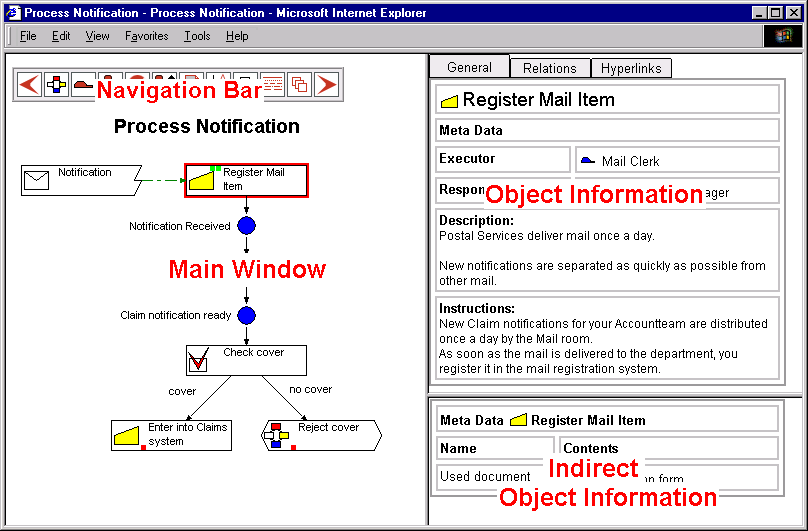
When you click on the Domain overview of a Process Model, the Process Model will open. The following illustration gives an overview of the page that you see when you open a Process Model.
Notes to illustration
Below is a description of the four sections in the HTML report of a Process Model.
|
Section |
Description |
|---|---|
|
Main Window |
In this section you will see main information such as process diagrams, process structure, and Role and Analysis overviews. |
|
Navigation bar |
A bar with buttons that you can use to navigate through the report. |
|
Object Information |
If you click on an Object in the main window, you will see the main Properties of that Object here. |
|
Indirect Object Information |
As well as default Properties, other information can also be connected to an Object, such as Relationships, or Extra Information, for example. |
Function of Objects
You may come across a number of Objects in the report. These could be Objects in the workflow (What is happening?), Data Objects (What is it happening with?) or Organisation Objects (Who is doing it?).
Objects in the workflow (What?)
|
Object |
Definition |
|---|---|
|
 |
A Trigger is an event that leads to carrying out, re-starting, or cancelling an Activity, a Process or Sub-Process, or a Status. 'Application Form is Received', for example. |
|
 |
An
Activity is an action, or a series of actions, that represents a single,
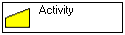
logical unit of work. In other words, a step in a process. 'Register Application', for example. |
|
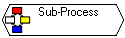 |
A Sub-Process is a part of a process that forms a logical group of Activities, Triggers, Statuses and other Sub-Processes. For example, the 'Processing Quotation' part of a process. |
|
 |
A Buffer is a storage place for work, usually physical. 'Archives', for example. |
|
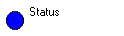 |
A Status is a moment in time between Activities, Sub-Processes and Triggers, such as a milestone or a waiting time. 'Awaiting Information', for example. |
Data Objects (What with?)
|
Object |
Definition |
|---|---|
|
 |
A Document
is a document that is involved in carrying out the process. 'Application Form', for example |
|
 |
A Folder is a folder in which you can logically group Documents and Sub-Folders. 'Client Folder', for example. |
|
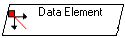 |
A Data Element is an item of information. It is the smallest unit of information in Protos. The 'Client Name' unit, for example. |
|
 |
A Data Group is a collection of data, and it is therefore used for logically grouping Data Elements. 'NAC Details' of a client, for example. |
|
 |
An Application is software or a system that is used in the process. A 'Word Processor', for example. |
Organisation Objects (Who?)
|
Object |
Definitie |
|---|---|
|
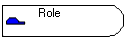 |
A Role describes the function profile or competence profile of Employees who are authorised to carry out an Activity. 'Assessor', for example. |
|
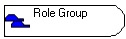 |
A Role Group is a collection of Roles. It is used to indicate that Activities are carried out by several Roles. 'Assessor Group', for example. |
|
 |
A Team indicates how work is distributed in the process. 'Postcode Teams', for example. |
Basic Principles
How to start
If you click in the Domain page on the ‘Process Notification’ Process Model, then this Process Model will open in the following window:
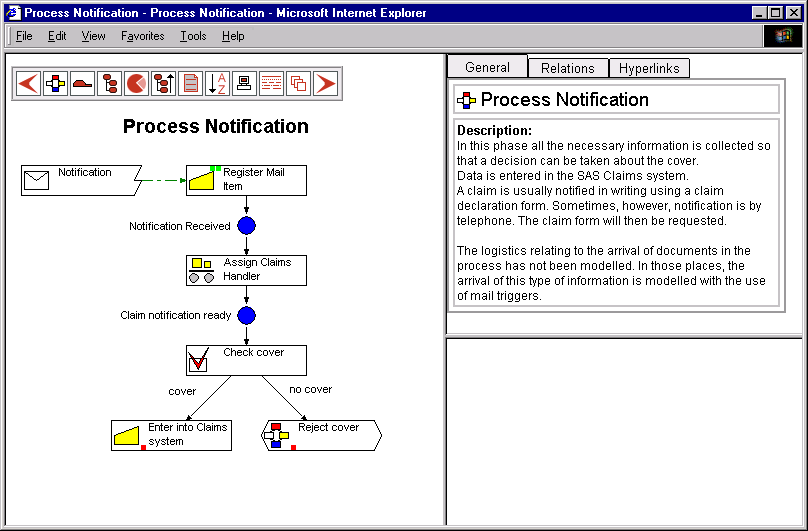
You will see the following information in the window:
Clicking on Activities
You can always display information by clicking on an Object. If you click on the ‘Register Mail Item’ Activity, for example, the following will result.
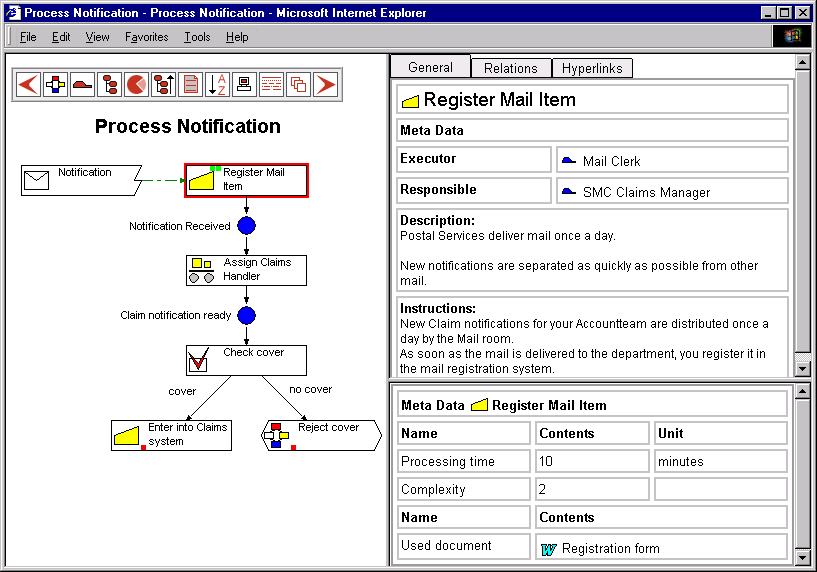
Clicking displays the following information:
Displaying Role Properties
By clicking on an Activity, the Executor Role will be displayed. If you want to know more about the ‘Mail Clerk’ Role, you can click on this Role, and the following will result.
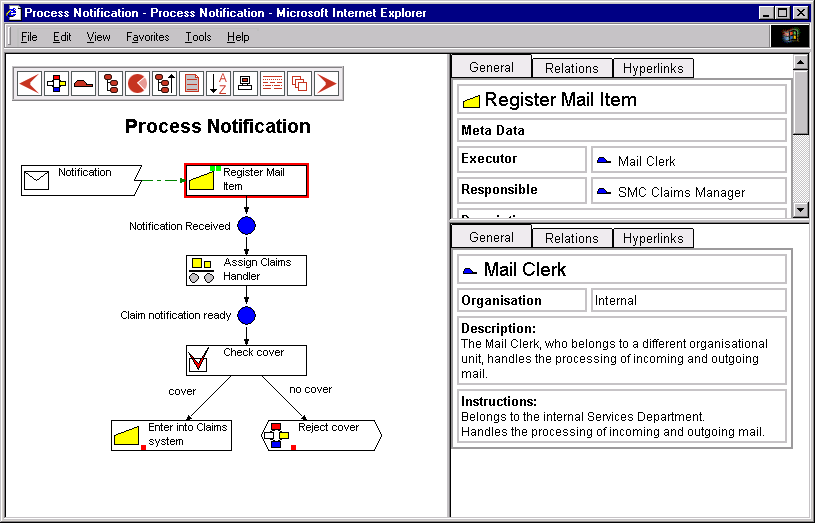
Clicking on the Role displays the following information:
Clicking on Sub-Processes
In the Main Process you will also see the ‘Reject Cover’ Sub-Process. You can click on this also. This will result in the following.
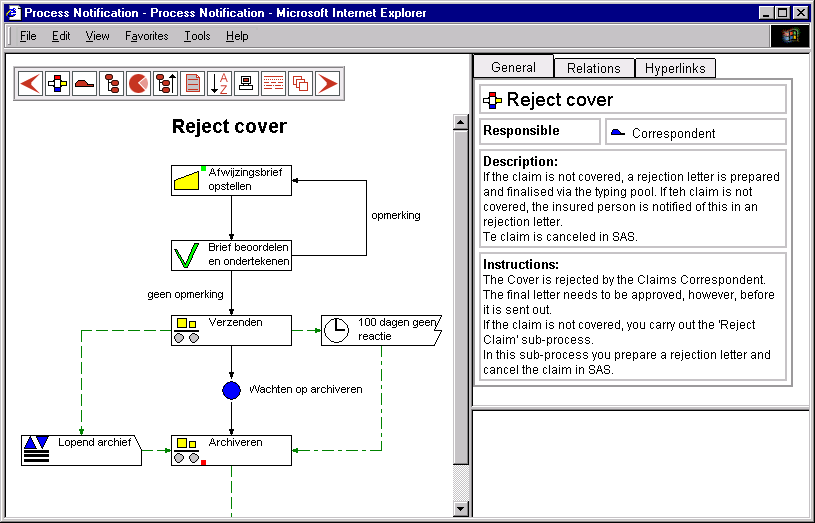
Clicking on the Sub-Process displays the following information:
Using the Navigation Bar
Navigation Bar
At the top of an HTML page of a Domain or Process Model you will always find the navigation bar, which you can use to jump to various sections in the report.Buttons on the navigation bar
Below is a description of the function of the navigation bar buttons.
Note Depending on the Report Options, it is possible that not all the buttons are displayed.
|
Button |
Name |
Description |
|---|---|---|
|
|
Back |
The previously opened page will appear. |
|
|
Main Process |
You will jump back to the Main Process. |
|
|
Roles |
The Roles in the Process Model are displayed. |
|
|
Overview |
An overview is displayed of the entire structure of Sub-Processes in the Process Model. This is similar to the Topview window. |
|
|
Analyses |
The Analyses section is opened. |
|
|
Up |
You go up one Sub-Process level in the Process Model. |
|
|
Instruction |
The Description and/or Instruction of the active Sub-Process is displayed. |
|
|
Start Page |
A Start Page is opened. |
|
|
Web Page |
A Web Page is opened. |
|
|
Search |
A Search Page is opened. |
|
|
|
You can send an E-mail to the person you have specified in the HTML Report Options. |
|
|
Index |
A list of all the Objects in the Process Model will appear. This list is sorted alphabetically, and by Object type. |
|
|
Screen |
The active process diagram is maximised. |
|
|
Legend |
The Legend is opened. |
|
|
Domain Page |
You return to the HTML page of the entire Domain in which the Process Model is located. |
|
|
History |
The history of the Process Model is displayed. |
 |
Forward |
The next page appears. |
Using Tabs
Introduction
A Process Model contains a lot of information. It would be impossible to put it all onto a single HTML page. This means that tab pages are needed to display all the information relating to Objects.
An Activity as an Example
To illustrate using tabs, we can use the Activity Object as an example.
Click for 3 tabs
When you click on the main window of an Activity, you will see 3 tabs displayed in the Object Information area (top right). These 3 tabs have the following functions.
|
Tab |
Description |
|---|---|
|
|
General information about an Object. |
|
|
Objects that are connected to another Object as a Relationship. |
|
|
Hyperlinks that you have connected to an Object. |
General Tab
When you click on an Activity, the General tab will appear as default. Below is an example of the information that may be displayed when you select the General tab.
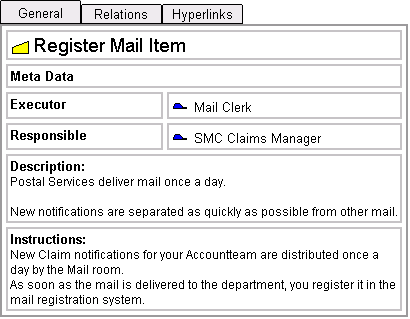
With an Activity, the default Properties such as Description, Instruction, and Executor, are displayed.
Relations Tab
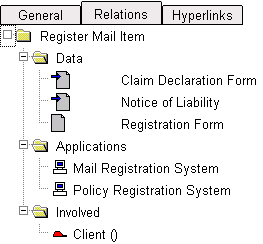
When you click on the Relations tab of an Activity, a number of other Objects will be displayed that are connected to that Activity. An example of this is shown below.
Clicking further from Relationships
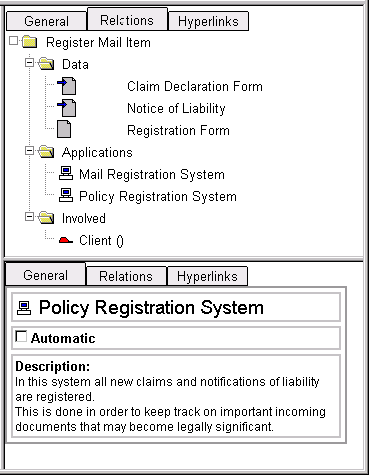
If you click on the ‘Mail Registration System’ Application, for example, then information about this Application appears in the area below. An example of this is shown below.
Hyperlinks Tab
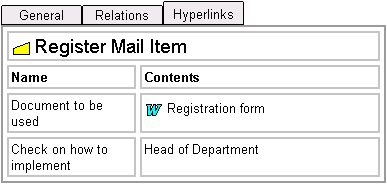
You can also connect Hyperlinks, such as a Connection to a Document, for example, to an Activity. By clicking on the Hyperlinks tab, all the Hyperlinks belonging to an Activity will be displayed.
Analyses in an HTML Report
Introduction
In an HTML report, you can view the Analyses as they also appear in Protos.
Opening via the Navigation Bar
You open
the Analysis section by clicking in the bar on the  button. The Analyses are then displayed in the main window.
Possible analyses
At the top of the Analyses section you will see six ‘buttons’ with which you can determine which Analysis is displayed on screen. Below is a description of these buttons.
Note The appearance of these buttons depends on the options you specified for the HTML report.
|
Button |
Description |
|---|---|
|
|
You use this to open an Executors Analysis, in which the Executor Role of all Activities is displayed. |
|
|
You use this to open a Responsibility Analysis, in which the Responsible Role of all Activities is displayed. |
|
|
You use this to open a Team Analysis, in which the work allocation of all Activities is displayed. |
|
|
You use this to open a Data Table, in which the Documents used in all the Activities are displayed. |
|
|
You use this to open an Application Table, in which the Applications used in all the Activities are displayed. |
|
|
You use this to open a RACI Table in which all Involved items of an Activity are displayed according to the RACI method. |
Illustration
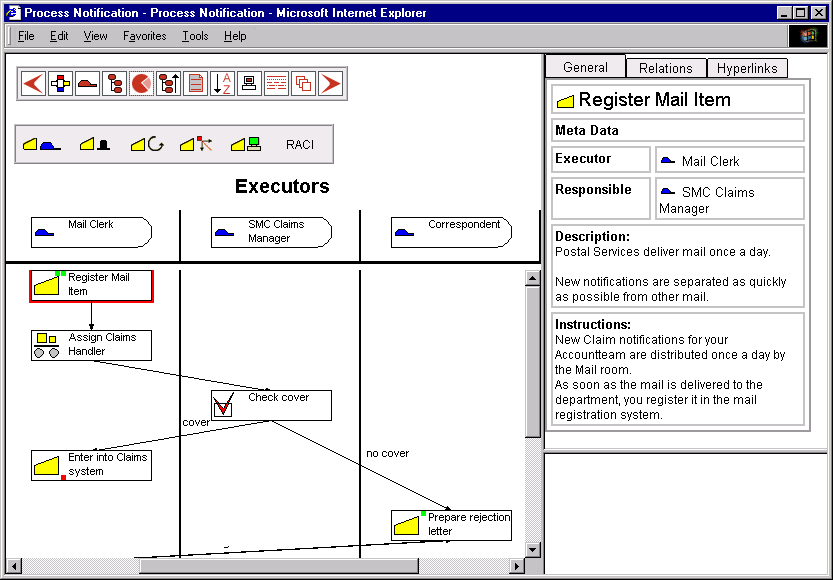
The illustration below shows an example of the Executors Analysis.
Note This diagram shows the Analysis in ‘Swimlane’ format. You could also specify in the HTML options that the Analysis should be displayed in table format. This happens automatically if the Swimlane format becomes too large.
Notes to illustration
This Analysis shows the Roles and Activities that are connected to these Activities as Executor. You can click on the Roles and on the Activities. In the right-hand windows you can see information about the Object.
Using the Index
Introduction
An HTML report contains an Index. You can use this Index to search quickly for a specific type of Object and immediately display information on that object This section describes how to use the Index.
Opening via the Navigation Bar
You open
the Index by clicking in the bar on the  button. The Index will be displayed in the ‘Indirect Object Information’
section. This window is usually on the bottom right.
button. The Index will be displayed in the ‘Indirect Object Information’
section. This window is usually on the bottom right.
Illustration
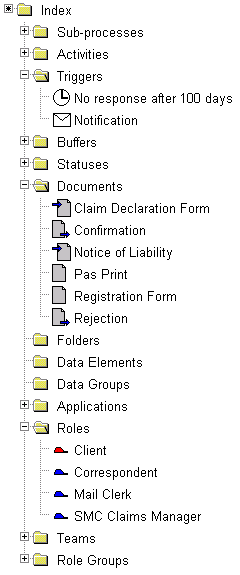
The illustration below shows an example of an Index.
Notes to illustration
Every Object that is possible has its own folder in the Index. In the example you see that the ‘Roles’ folder is opened. All the Roles in the Process Model are displayed here.
Clicking further via the Index
Every Object in the Index can be clicked, which will display more information about that Object. If you click on the ‘Mail Clerkt’ Role in the example, the following will happen.
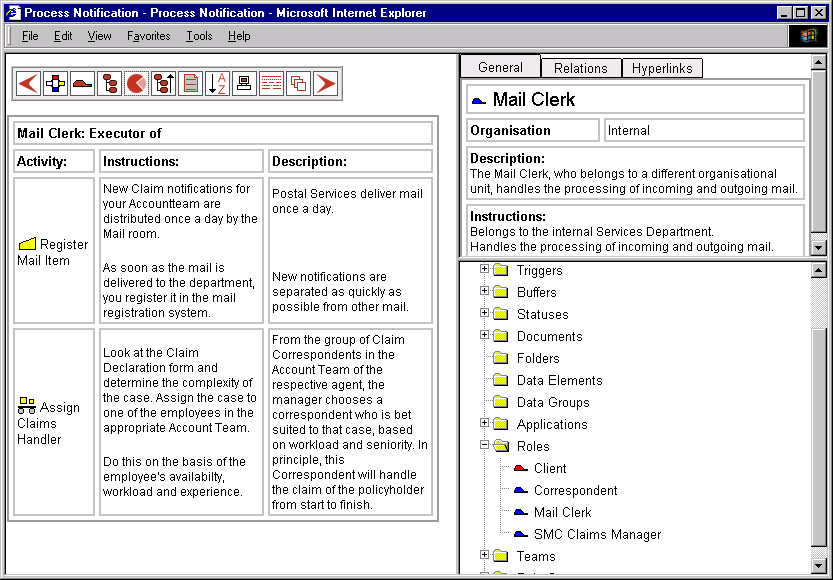
After clicking on the Role, the default Properties of the Role are displayed in the Object Information section. All the Activities carried out by that Role, including Description and Instruction, are displayed in the main window.
Pallas
Athena
www.pallas-athena.com
T: +31 (55) 3685300
F: +31 (55) 3685311
service@pallas-athena.com


