 11. Hyperlinks and Anchors
TO PRINT THESE INSTRUCTIONS, RIGHT-CLICK IN THIS BOX AND SELECT 'Print'
A. To insert a hyperlink:
- Highlight the text which will be the link
- Click on the Link Wizard icon

You will see this link prompt box, with the selected text in the 'Display Name' field.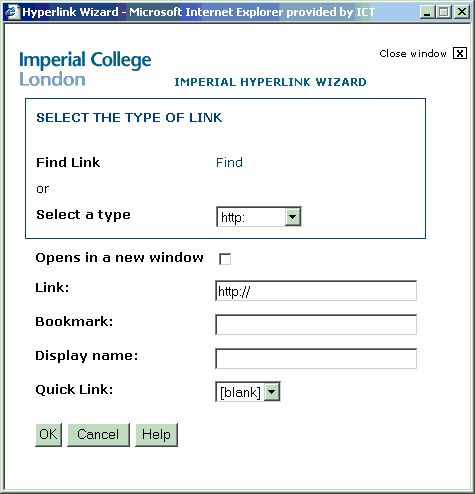
- To link to a page within a site on Portal:
- Click on Find.
The Portal explorer will appear, showing you all the sites available on Portal e.g.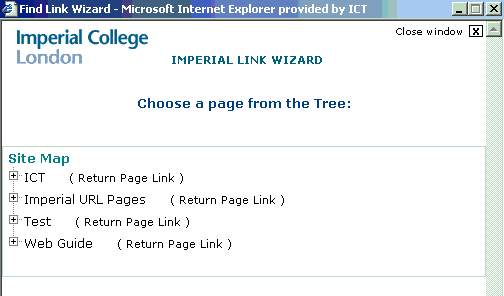
- Navigate your way through the sites to the page you want as your target, clicking the + icon to expand each section.
- When you find the page you want, click on the ( Return Page Link ) link.
The target link will be inserted in the Link: field in the link prompt box.
- Click on Find.
- To link to a site outside Portal:
- Select http:// or https:// as required from the Select a Type dropdown
The Opens in a new window box will be automatiocally ticked. If you are linking to another site which is in the new College templates, clear this box. - Type or paste the URL (web address) into the Link: field
- Select http:// or https:// as required from the Select a Type dropdown
- To insert a mailto link:
- Select mailto: from the Select a Type dropdown
- Insert the required email address after the mailto: text in the Link: field
- To insert other types of link (e.g. ftp):
- Select the link type from the Select a Type dropdown
- Insert the required web address after the link type in the Link: field
B. To insert an anchor (bookmark) within a page:
- Capture the URL of the page:
- If you have the page open in the Content Editor, close it by clickng OK. You will see the page in browse view.
Otherwise
Go to the page in the browser. - Copy (Ctrl+C) the URL of the page starting at /portal/page e.g.
/portal/page?_pageid=35,1&_dad=portallive&_schema=PORTALLIVE
You will need this later. - Select Edit Content on this page. The page opens in Editor view.
- If you have the page open in the Content Editor, close it by clickng OK. You will see the page in browse view.
- Insert the anchor:
- Position the cursor at the point you want the anchor to link to.
- Click the flag icon

The anchor dialog box will appear
- Type in a suitable name for the anchor. The 'Add' box will be activated.
- Click 'Add' and the anchor will be added to your page at the insertion point.
- Create a link to the anchor:
- Highlight the text you want to use as the link, and click on the Link Wizard icon
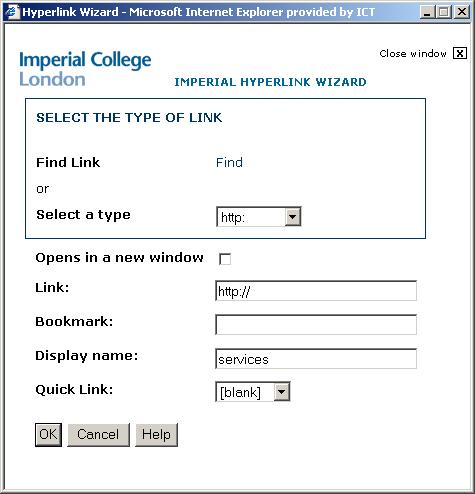
You will see this link prompt box, with the selected text in the 'Display Name' field. - Clear any existing text from the 'Link' box and Paste (Ctrl+V) the URL of the page.
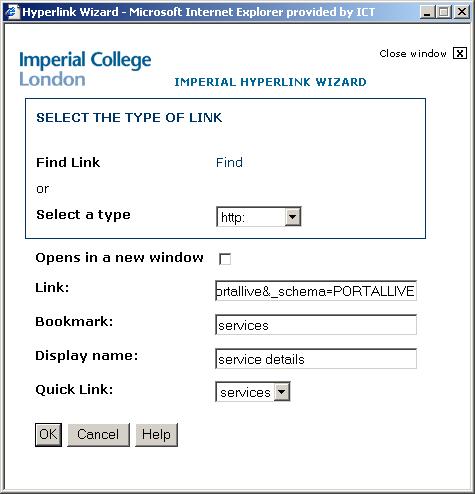
- Open the 'Quick Link' drodown to see all the anchors available on the page and select the required one. The name of the quick link is inserted in the 'Bookmark' box e.g.
- Click OK to save the link to the anchor and return to the Content Editor.
- Highlight the text you want to use as the link, and click on the Link Wizard icon
C. To remove a hyperlink:
- Position the cursor anywhere within the link text.
- Click on the Remove Link icon

The hyperlink will be removed.