 Change Acess Permissions
TO PRINT THESE INSTRUCTIONS, RIGHT-CLICK IN THIS BOX AND SELECT 'Print'
Before you change the permissions on your existing pages, decise whether you want to grant the new permissions in addition to the permissions already set up, or whether the new permissions will replace the existing permissions.
If you need help with this, contact Marion Brady or Theresa Nichols in the ICT Web Team, or raise a call with the ICT Service Desk.
1. Select all the required pages from the current list by ticking in the selection box next to the page name. i.e. 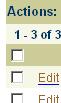 .
.
If there are several files, you can select them all at once by ticking the selection box in the green heading bar. Be careful NOT to select any Content Items - you can only change permissions on pages.
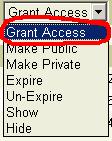
2. Click the arrow in the Grant Access box

to show the access selection dropdown.
3. Select Grant Access from the dropdown i.e.
4. Click the Go box next to the Grant Access box.
The Grant Access selection page will appear i.e.
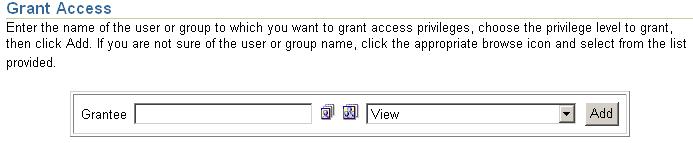
5. Use the Browse Users or Browse Groups icons  to select the person or people to be given permissions.
Note that it is strongly recommended that you use groups when assigning permissions for ease of future maintenance. If the group you need does not already exist, please ask Marion Brady or Theresa Nichols to create it for you.
6. Select the level of permission for the user or group from the Permissions dropdown list 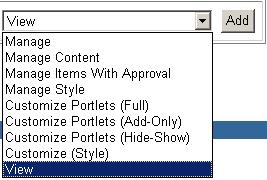
7. Click the Add button next to the dropdown list. The permission is applied and will will get a confirmation message similar to this:
 .
.
Click OK on the confirmation box.
8. Repeat steps 5-7 for other users or groups requiring permisions.
9. When all permissions have been assigned, click OK on the Grant Access selection page.
10. Permissions have now been changed for the pages selected from the current list.