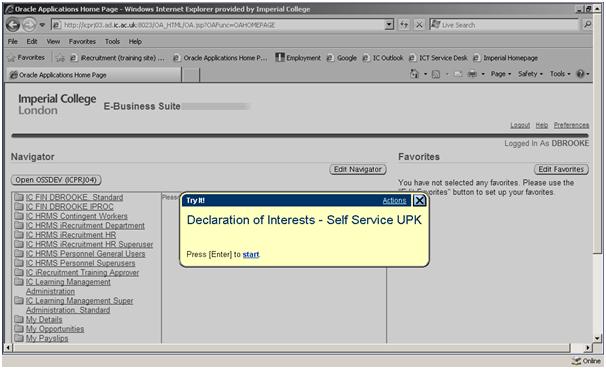
If you need help with the player, click on the help button in the top right hand corner of the screen
Using the buttons above, you can view the content in two player modes
Getting around the training content
See It Mode
The player will start automatically, to pause the demonstration, click on Pause
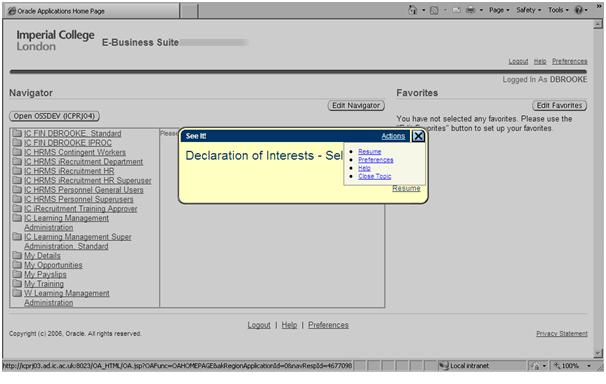
Left Click on Actions to see the menu below:
Resume To resume watching the demonstration
Preferences To change how you view the demonstration e.g. with or without introduction text
Help To display the players help topics
Close Topic To exit the player
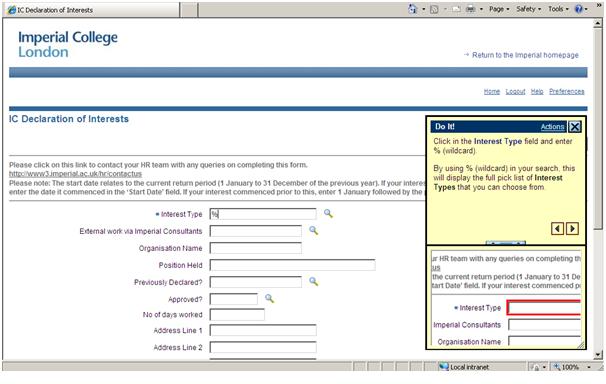
Do It Mode
The top of the screen displays the instruction
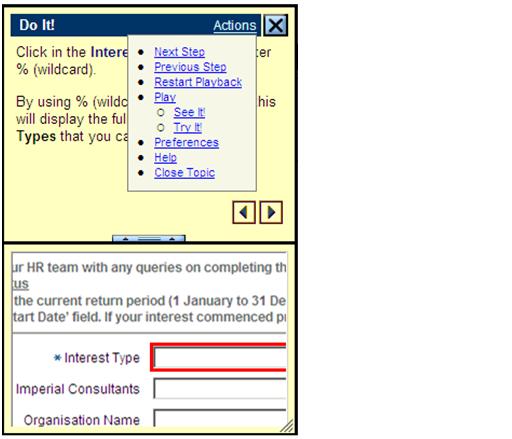
Left Click on Actions to see the menu below:
Next Step To advance to the next step
Previous Step To go back to the previous step
Restart Playback To go to the beginning of the demonstration
Play - See It! Enables you to learn by watching an animated demonstration of tasks being performed.
Preferences To change how you view the demonstration e.g. with or without introduction text
Help To display the players help topics
Close Topic To exit the player