MW.1M4 Meeting Room 5B
Help guides

Teams meetings
A quick guide on how to schedule, join and leave Teams meetings in this space.
Recommended

Join a Zoom meeting
A quick guide on how to schedule, join and leave Zoom meetings in this space.

Connect to WiFi
The Imperial-WPA network is for the university members only. To connect to it, follow the appropriate instructions for your device and operating system.
Present wirelessly
How to present your screen wirelessly to a Teams or Zoom meeting in this space.
Recommended
Present via USB-C
How to connect and present to a Teams or Zoom meeting from your device using USB-C.

Present an interactive whiteboard
How to present an interactive whiteboard that you and your meeting participants can contribute to.
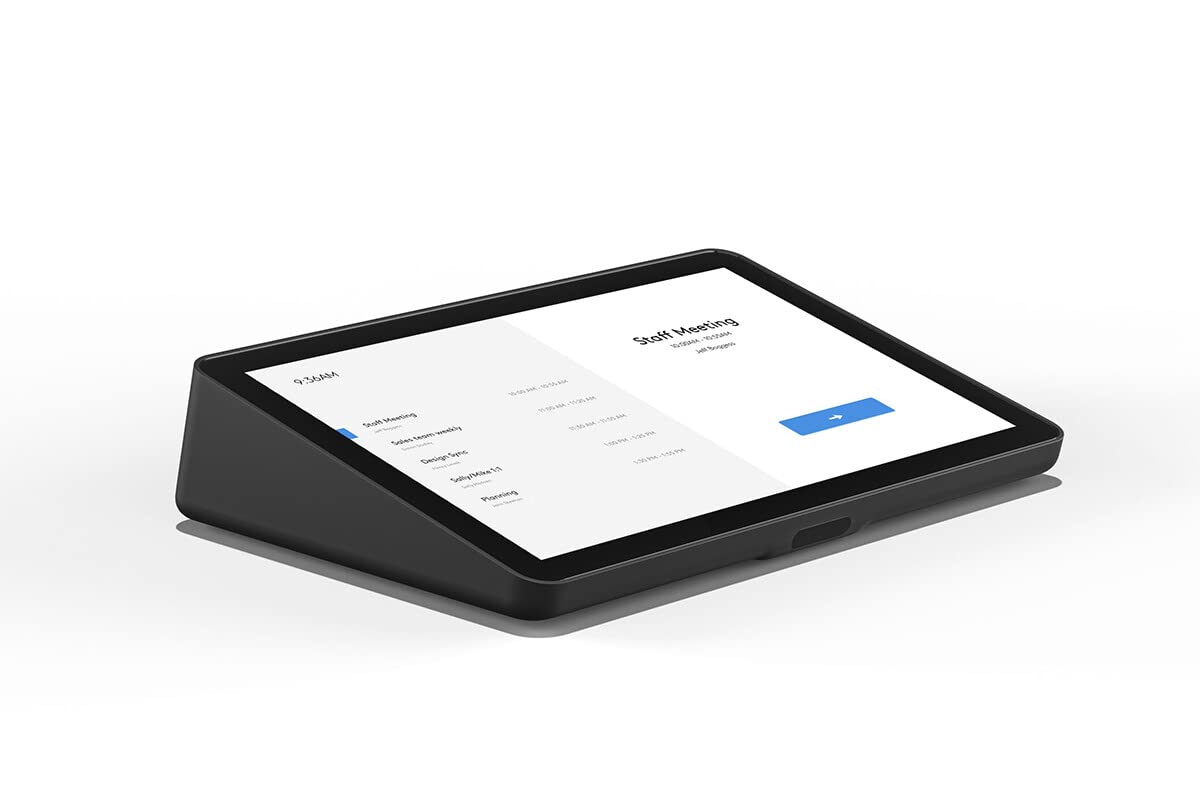
Teams controller
The Teams controller can control all the online aspects of your meeting in this space.
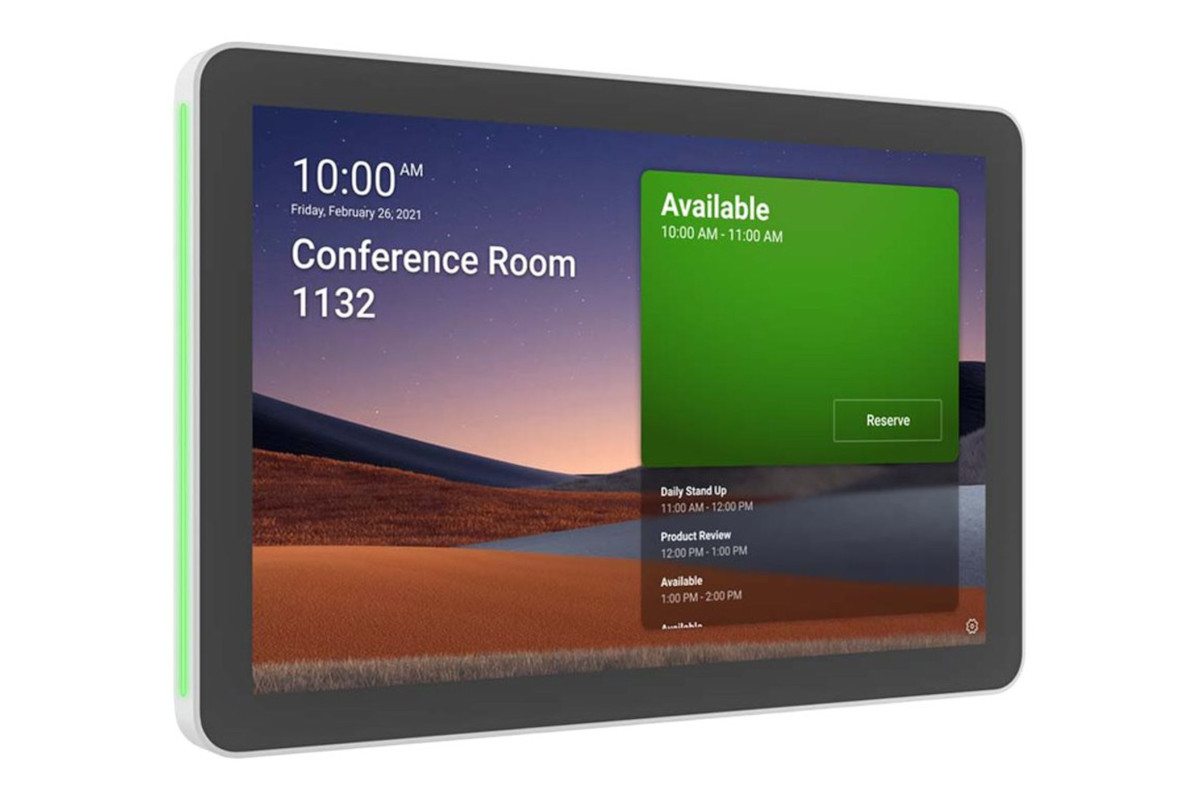
Space scheduler
Outside this meeting space you will find a scheduler panel that displays the current status and availability of this space.
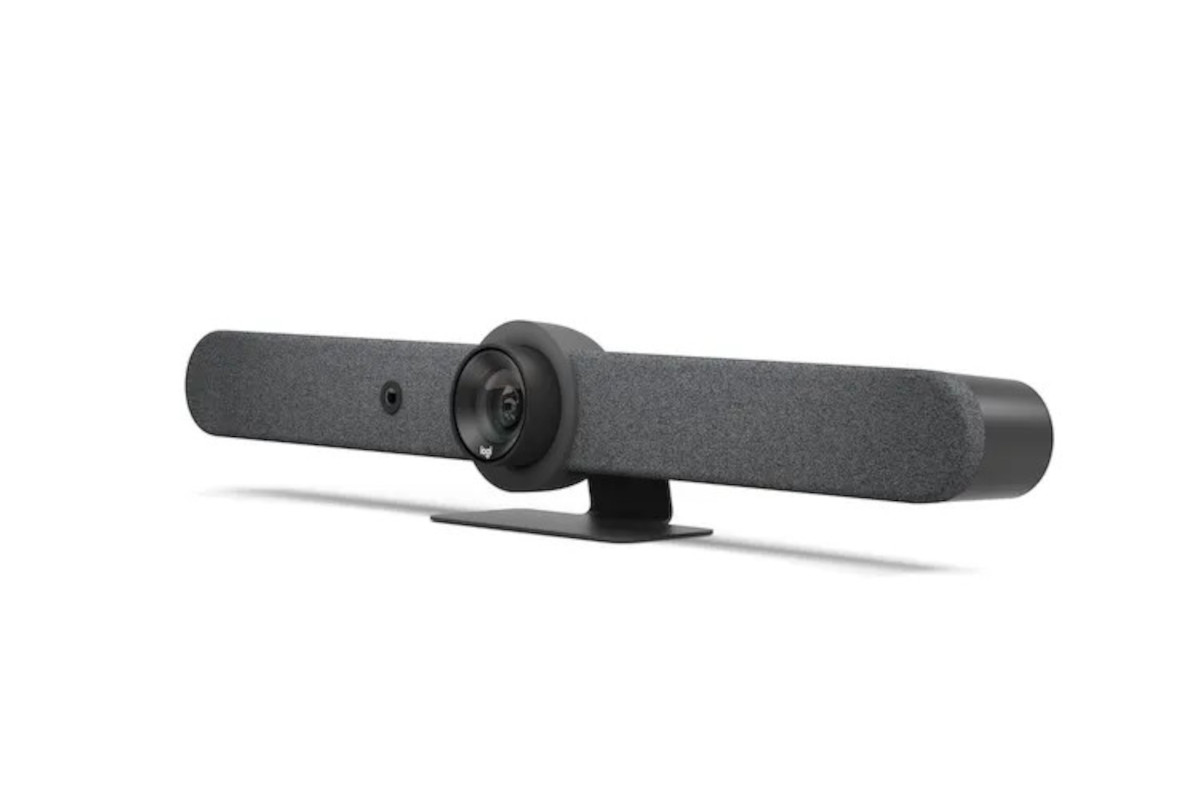
Media bar
The media bar camera is equipped with a privacy screen. Find out more on how to enable and disable the screen.
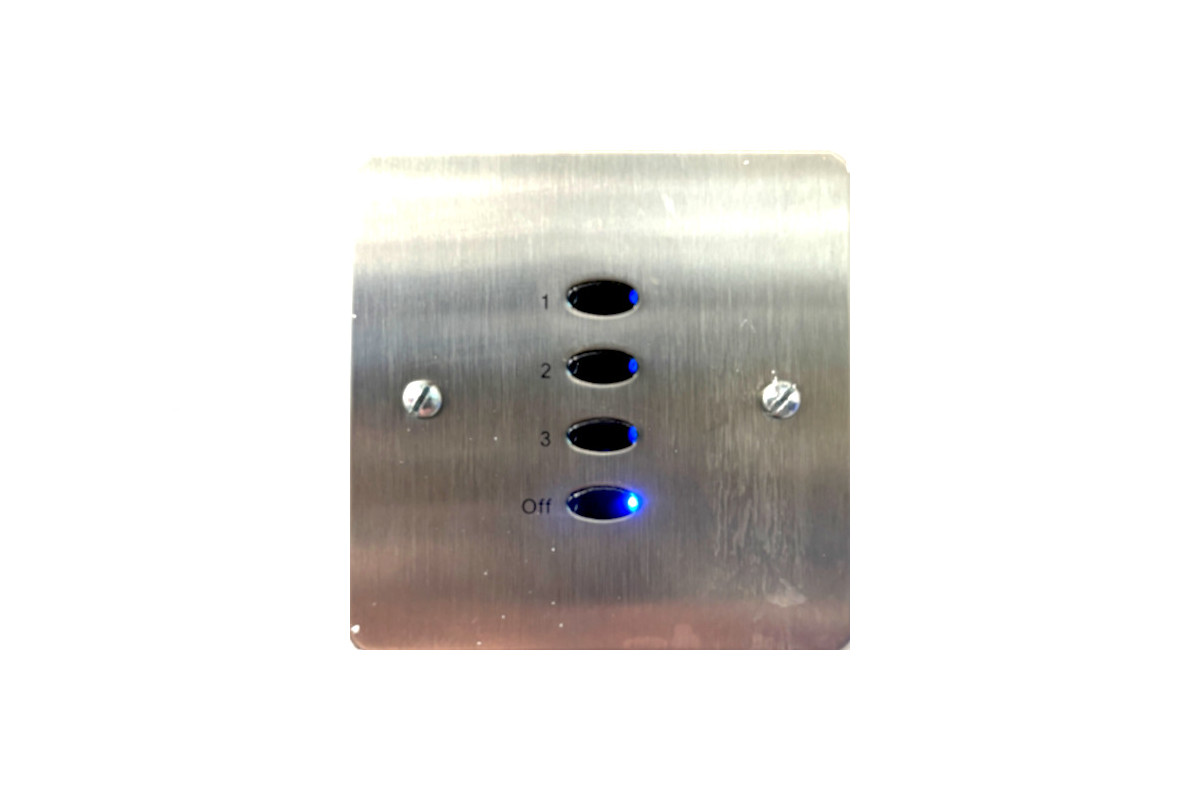
Meeting space lighting control
A quick guide on how to use the lighting controls for this meeting space.
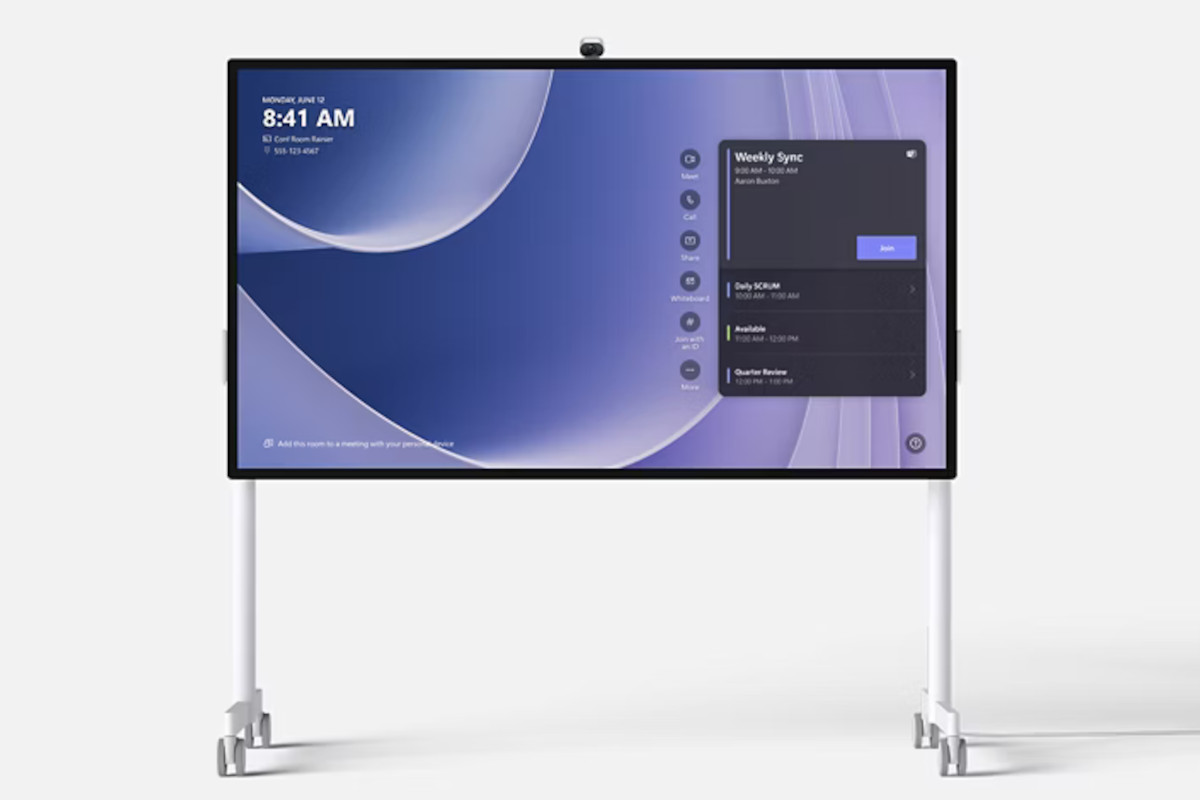
Microsoft Surface Hub
This is a multi-function space and has a mobile Microsoft Surface Hub. The Microsoft Surface Hub should be used when the meeting spaces have been combined.
 icon will have a red line through it.
Camera privacy covers are available in this meeting space, you can find and remove the privacy covers by following the guide for the .
If you make changes to your meeting to add this meeting space, please allow up to five minutes for the controller to update.
If you have followed all the steps in the instructions and your meeting is still not displaying in the upcoming list please use the Report a fault link on the Get started tab on this page, or if the issue is urgent, please call the ICT AV priority helpine on ext. 49003. (+44(0)20 7594 9003 from an external phone)