It looks like you have reached this page from a search engine or direct link, this may not be the correct user guide for your current meeting space. You can find the correct details by searching for the meeting space you are currently in.
Using lighting controls
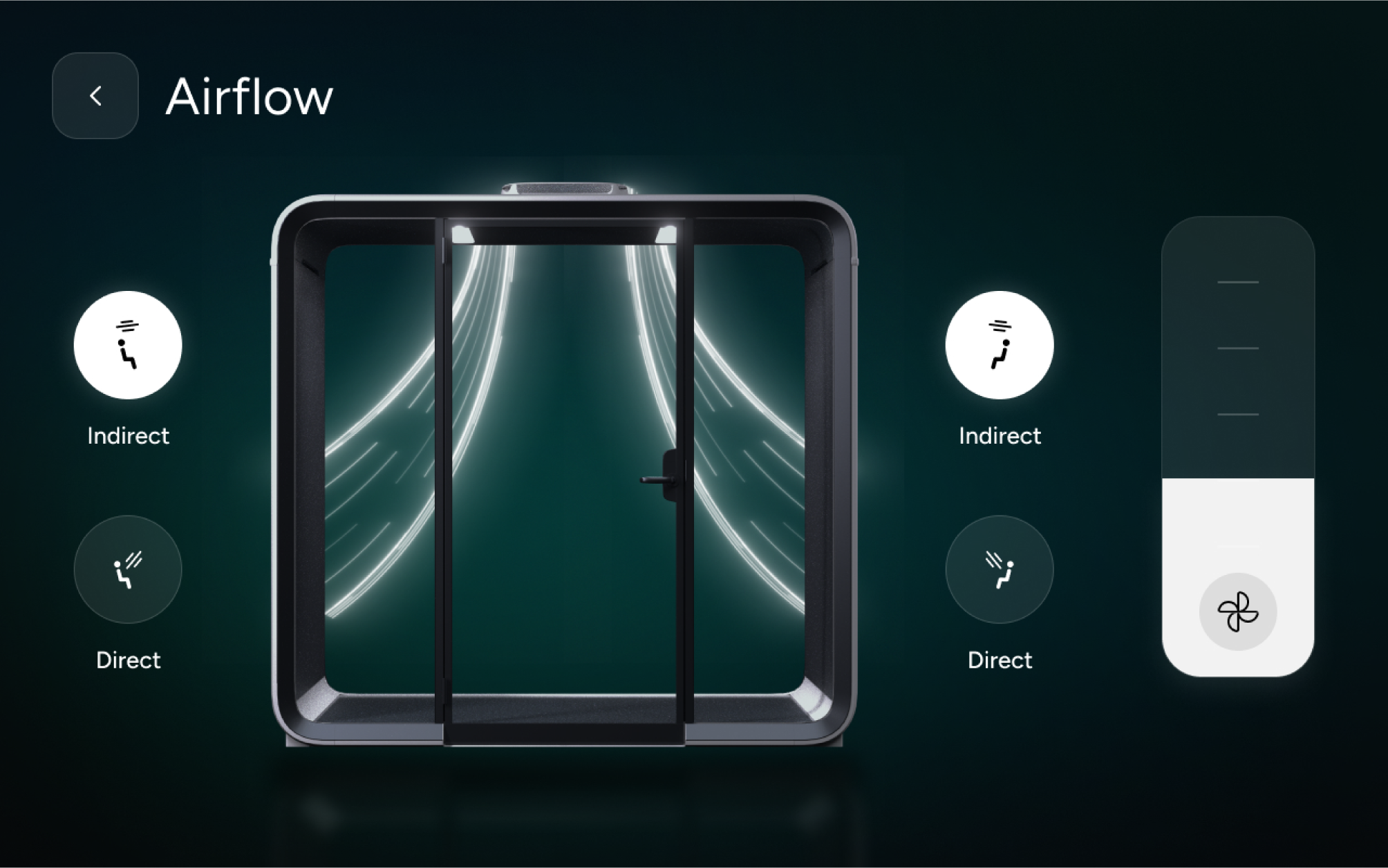
The Framery controller allows you to set the appropriate light levels and airflow inside the meeting space.
Adjusting the lights
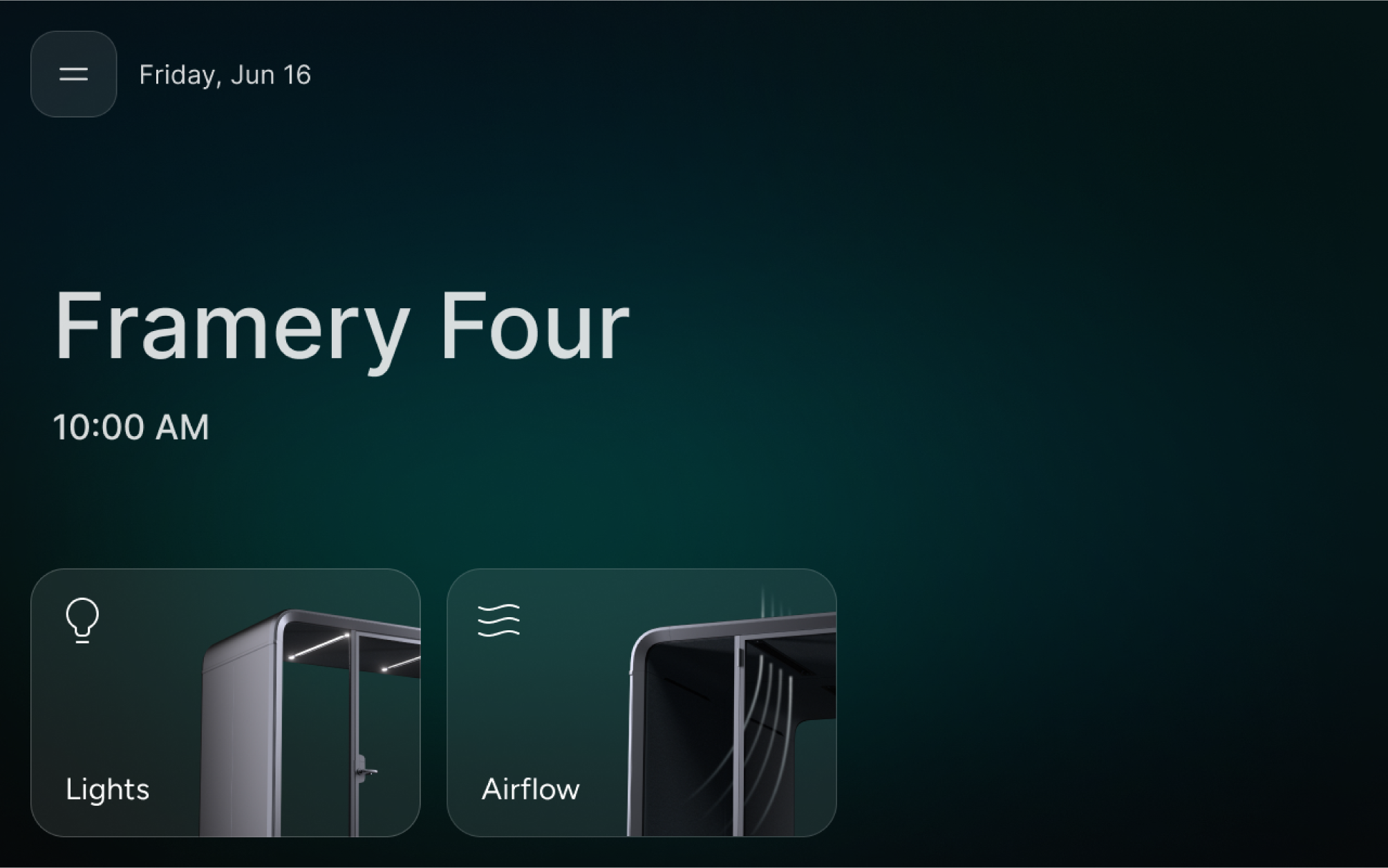
- Press the Lights button on the main menu of the touch screen.
- Press Standard mode or Video call mode. The lights are automatically adjusted to a brightness suitable for either working in the pod or video conferencing.
- To manually adjust the lights, slide the level line up (brighter) or down (less bright).
- To turn off the spotlights, press the Spotlights button below the slider.
- To return to the main menu, press the arrow ‹ button in the upper left corner of the screen.
Adjusting the airflow
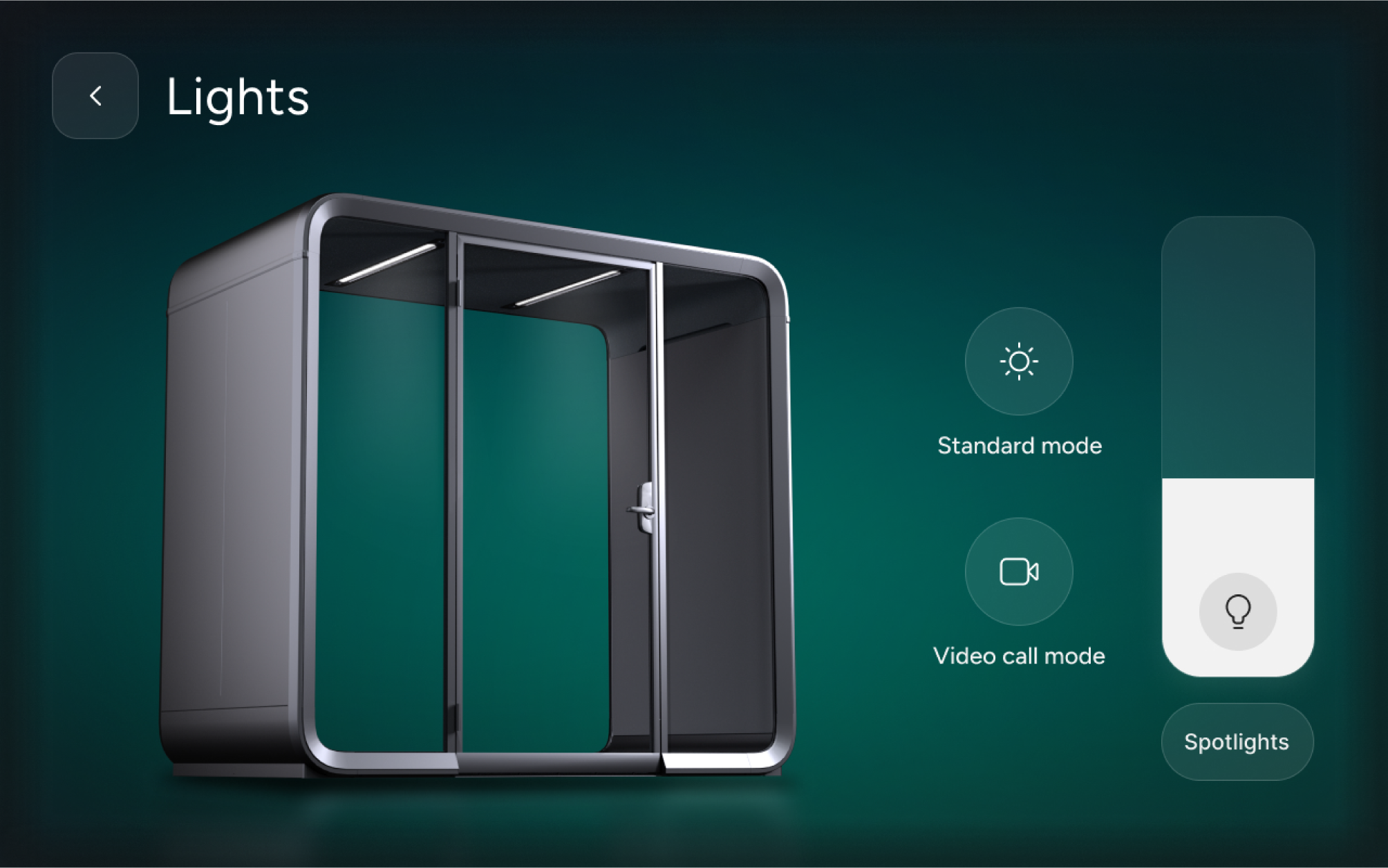
- Press the Airflow button on the main menu of the touch screen.
- To adjust the level of ventilation, slide the level line up (more ventilation) or down (less ventilation).
- To adjust the direction of the airflow:
- Select Indirect to direct the airflow off from the users.
- Select Direct to direct the airflow directly towards the users.
- You can adjust the direction of airflow indpendently for each side of the pod.
- To return to the main menu, press the arrow ‹ button in the upper left corner of the touch screen.