Creating your sub brand logo
The first step is to create the file using the template on the brand platform, named ‘Masthead for a sub brand’. Please note that the background colour defaults to blue. This can be changed by clicking on the background and choosing a different colour.
There are three different template options depending on the length or your sub brand logo.
Visit the brand platform and use the search bar to find your sub brand logo. Please note:
- You should download the PNG version of the file. Select ‘download’ in the top right hand corner, followed by ‘export options’, and select ‘PNG’ in the file extension bar.
- You should use the black and white version of your sub brand logo.
Upload this to the template, and when you’re happy with it download it for use.
Add your sub brand logo to your newsletter
To add your sub brand logo as a header image, you’ll need to delete the Imperial logo – this avoids duplication of the core Imperial logo.
To remove the Imperial logo, known as the ‘masthead’, you will need to select the three lines in the top right corner of the content type and click on the trash can icon to delete.

Next, navigate to the ‘layout bar’ in the email editor, found on the left hand side of your email.
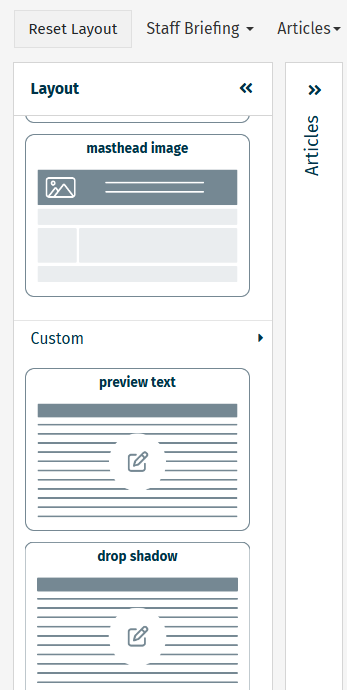
Select ‘header and footer’ and drag ‘masthead image’ to where the masthead was placed.
From there, you can upload your sub brand logo as an image. Please note that you must use alt text to convey all the text that appears in the image.