Asset Management
Any staff purchasing goods through ICIS or ATLAS which are an Asset?:
in the description field please include:
*Asset/Danny Harvey/114*
The asset field indicates that the goods should be included in the asset database. The name field identifies the person who will be using the asset, and the final field records their room number.
On a daily basis, Stores staff scan incoming purchases through the ICIS system. Any purchase that includes “ASSET” in the description is automatically added to the asset database.
SRGA staff are responsible for managing the full life cycle of any assets assigned to their group. This includes recording which members of their group are using each asset, noting when an asset is transferred to someone outside the group, and ensuring the asset is formally recorded when it needs to be scrapped.
To manage departmental assets, you will need two things:
- The Asset Tracker installed on your computer. Click this link, hit the download button, then save the app somewhere on your computer.
- Permission to access the asset data.
To arrange access permissions, please contact D.Harvey@imperial.ac.uk
A quick guide to using the Asset tracker
On opening, you may need to allow access for the application to load properly.
notes on opening....
Press CTRL + K to display the list of shortcut commands at any time (the same shortcut closes this pop up, many of the commands toggle like this).
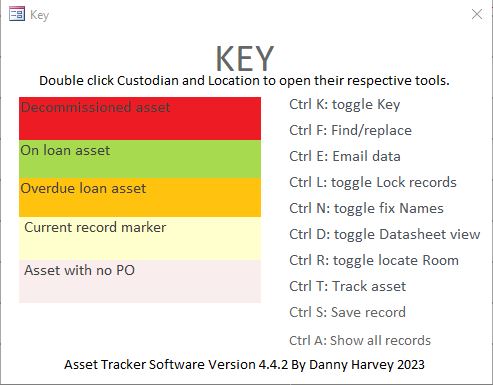
The record highlighted in pale yellow indicates the current record pointer.
Press CTRL +A to select all records. Then use CTRL +D to switch to Datasheet View, which is ideal for searching and scanning through records.
Once in Datasheet View, press CTRL + F to search within any column. Because you selected all records with CTRL +A, your search will cover the entire dataset.
CTRL D gets you back out of datasheet view, then:
After locating the record you need, press CTRL + T to perform actions on that specific record.