
Most Canvas courses will have banner and tile images applied already, it is possible to update these to personalise the design of the course to the subject being taught.
Banners should be added to your course homepage and tiles should be added to the course settings so that they display on the 'Dashboard' for those enrolled on the course. Banners and tiles should always be used as matching pairs.
A library of pre-made banner and tile images are available on the Imperial brand website:
You can search for tiles/banners that have been created with your department's creative I already added.
How to add or replace banner and tile images in your course
Adding banners
- Access the 'Home' page of the course you want to update
- Edit the page
- Delete the existing Banner Image by clicking on it and pressing the delete key on your keyboard
- Click on the 'Images' icon in the editor toolbar and select 'Upload image' from the dropdown
- Either drag and drop the image to the upload box or click the upload box for a file selector to upload the image from where you downloaded it
- Under 'Attributes' check the 'Decorative Image' box and click 'Submit'
- Click on the Image and choose 'Image options'
- Check the 'Dimension type is set to 'Percentage' and '100%'
- Click 'Done'
- Scroll down and click 'Save' to update the page
Tiles
- Access the course you wish to update
- Click on 'Settings' from the left hand menu
- Under 'Course Details' the first option is 'image'
- Click the ellipsis in the top right corner of the image
- Select 'Choose Image'
- Either drag and drop the image to the upload box or click the upload box for a file selector to upload the image from where you downloaded it
Creating your own banner and tile images
Coming Soon! A Canvas course banner generator will be available via the branding website
Manually creating Canvas course banners and tiles
To manually create banner and tile images it is important to follow the instructions below, the look and feel of Canvas courses is the same between all courses and departments to ensure a familiar and consistent learning experience for students.
- Images should be abstract with no text added (banner images should be decorative only).
- Banners are 1280x256px
- Tiles are 1048x584px
- Banners and tiles should always use the same image to be 'matching pairs'
- A Creative I should be placed on the left hand side with clear contrast and appropriate padding. (use the padding that is present from the Imperial branding website downloads) A generic Creative I can be used or one that is specific to your department.
- Stock photos, images from the internet, AI generated or images with copyright should not be used
- Please look to source images from the Imperial image asset library
| Example banner | Example tile |
 |
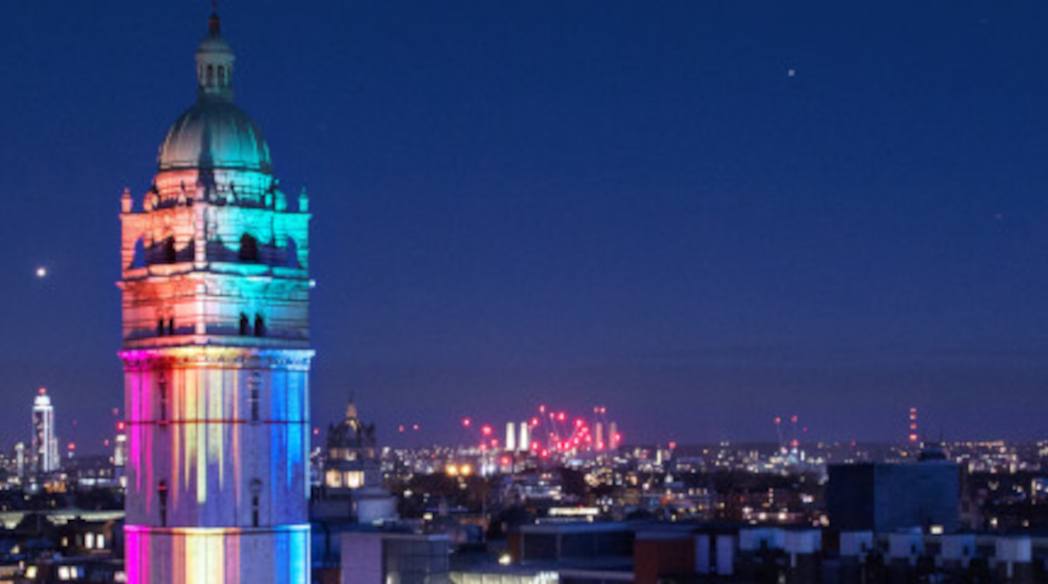 |