We strongly recommend you secure your Imperial account by setting up passkeys as part of your Multi-Factor Authentication (MFA) method.
You can find out more about Passkeys and MFA in the below FAQs, but if you need further support, pleaseContact the ICT Service Desk.
Using my phone for MFA and passkeys
- I use my phone to check my emails, will MFA affect this?
- Is there an alternative to using a phone?
- I’ve received an unexpected text message or an App notification
- What fido2/security keys does Imperial support?
- What if I change my phone?
- What if I lose my phone?
Most email applications provide support for MFA so users will be prompted to MFA every 30 days.
Linux users: Thunderbird v78 or higher supports MFA.
Apple users: iOS 11, iPadOS 13.1 and macOS 10.14 and above native mail client supports MFA.
Sometimes a passkey isn't secure enough, for example, for IT Systems Admininstrators or for use on shared devices.
We may be able to supply you with a physical key. You can complete our hardware token request form if you wish to use one.
Alternatively, if you already own a fido2/security key, you can follow the instructions on the Secure my account – authentication methods page to set up a security key.
Please decline the app notification (select "No It's Not Me)/do not respond to the text message and contact the ICT Service Desk who can investigate further.
The following fido2/security keys are supported:
- Yubikey 5 Series security keys running firmware version 5.7
- Yubikey 5 Series nano series of security keys running firmware version 5.4
- Yubikey Security Key series security keys firmware version 5.7
Please note attestation is required.
If you would like another model to be supported, please log a request for ICT to consider.
If you get a new phone then you will need to migrate the Authenticator App to your new device.
Please visit the Microsoft My Sign-ins account page and delete the device you have lost.
If you no longer have access to your account, please contact the ICT Service Desk.
We recommend setting up a second device where possible, so you can continue to access your account even if you lose your phone, hardware token or security key.
Authentication
- Troubleshooting set-up on Android phones
- Do I have to use MFA / passkeys each time I login?
- Does MFA work over Wi-Fi?
- How do I add a second multi factor method?
- How do I set a default second multi factor method?
- I can't add MFA to my iOS mail client?
- Can I still login in the normal way?
- How do passkeys work?
- Where do passkeys live?
- Preventing MFA prompts during important meetings/lectures
- Why isn't location data provided by the Microsoft Authenticator App accurate?
- Why am I being asked to enter a number to complete an MFA transaction?
In order to use passkeys on the Microsoft Authenticator App, your device will need to be running at least Android 14.
You will also need to have the latest version of the Authenticator app installed.
Check notification settings are enabled
On your Android phone:
- Open Settings
- Go to Apps
- Select Microsoft Authenticator
- Tap Notifications
- Ensure Allow notifications is ON
- Enable all notification categories, especially:
-
- Approvals
- General
7. Enable:
-
- Show on lock screen
- Pop on screen (or “Interrupting” on some devices)
Configure Android to allow Authenticator as a passkey provider
On your Android phone:
- Open Settings
- Go to Passwords & accounts
- Select Additional providers (or Autofill & passwords on some OEMs)
- Ensure Microsoft Authenticator is:
-
- Enabled
- Allowed for Passkeys
5. Ensure Autofill with passkeys is turned ON
6. Enable all notification categories, especially:
-
- Approvals
- General
7. Enable:
-
- Show on lock screen
- Pop on screen (or “Interrupting” on some devices)
For most applications that people connect to they will have the option to trust this device for 30 days and will therefore not be constantly prompted to MFA. However, some systems require additional security and therefore will prompt every time.
Yes, the Microsoft Authenticator App works on both Wi-Fi and mobile connections.
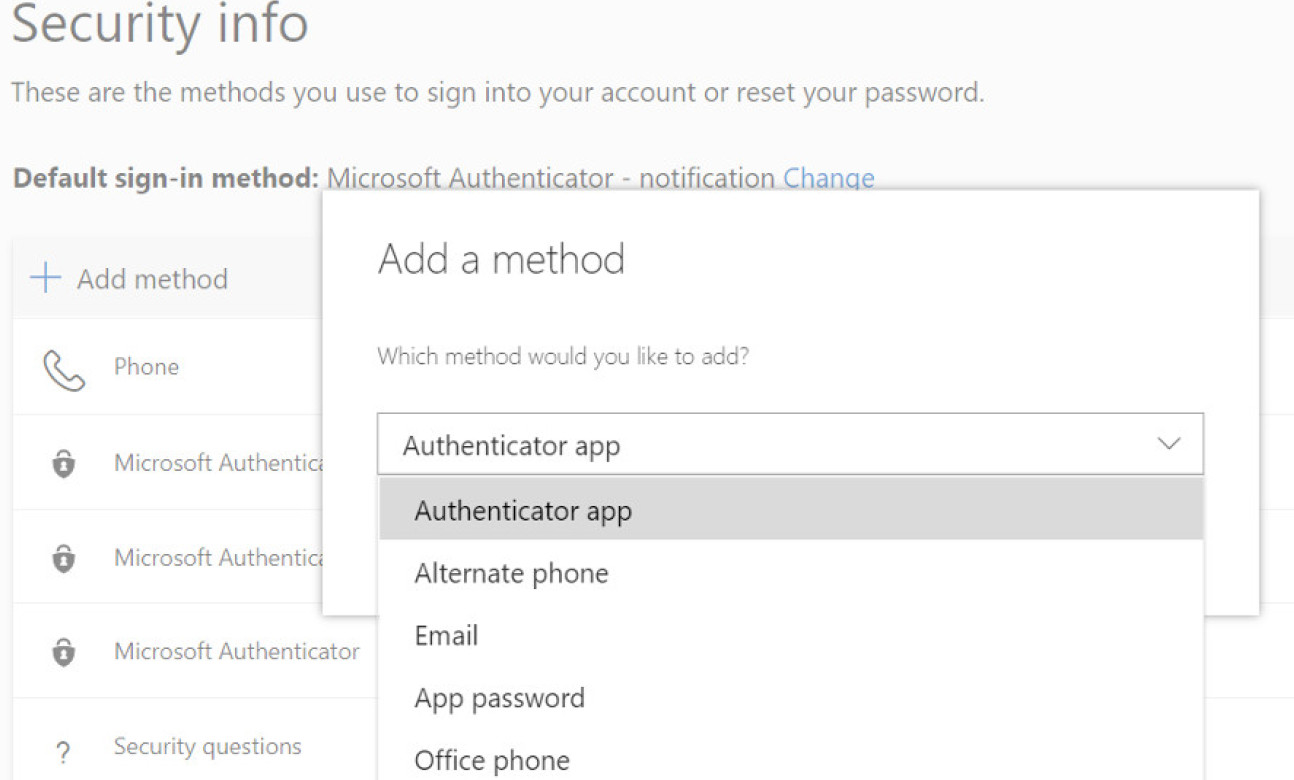
- Please go to Microsoft Sign-ins security page
- Select "Add method" at the top of the options box.
- You can then choose from a selection of methods.
- see screen shot below for guidance:
- Please go to Microsoft Sign-ins security page
- Select "Change" next to “Default sign-in method: Microsoft Authenticator - notification Change”
- Change default method to "Microsoft Authenticator - notification".
- see screen shot below for guidance:

Please delete your existing Imperial account from you iOS mail client and start again.
Yes! – If oyu are havin any issues with passkeys you can choose to log in with your password using MFA.
Key pair generation: When you set up a passkey, your device generates a pair of keys.
Storage: The private key remains securely on your device, while the public key is shared with the service Eg university MS log in.
Authentication: When signing in, the service sends a ‘challenge’ that only your private key can sign, which your device unlocks using biometric or PIN, effectively replacing a password.
Passkeys are device-bound - stored in secure hardware on your device.
Using the Microsoft Authenticator App makes dealing with MFA prompts quick and simple there may be times when you do not want the disruption of the MFA prompt.
You can force the MFA prompt early on the device by following the below instructions:
- Go to My Sign-Ins
- It will either prompt you to re-authenticate using MFA or not, make sure you tick the do not prompt for x days box
- If not, near the bottom click on Sign out everywhere and go to My Sign-Ins again and it should prompt you for MFA. make sure you tick the do not prompt for x days box
The location data from the app isn't always accurate, particularly if you are using a mobile network or using a Virtual Private Network (VPN).
If you are ever in doubt, based on the location provided, please select the "No It's Not Me" button and contact the ICT Service Desk.
The use of MFA has drastically reduced the number of compromised accounts at Imperial, however malicious actors have adapted and are now using a new attack (MFA fatigue), which means individuals could repeatedly receive approval notifications.
Unfortunately, sometimes people believe that this is a system error/issue so approve the request which grants a third-party access to their account. Number matching helps to defend against this type of attack.
Things have moved on from number matching - you should now set up passkeys, instead of number matching.
MFA and passkeys when overseas
- Can I set up MFA in China?
- Does MFA work in my country?
- I'm currently abroad, will I be charged to use MFA?
Please visit the Microsoft webpage about MFA in China.
The MFA service we are using is provided by Microsoft - so if Office365 (email, teams, SharePoint etc.) is available in your country, so should the authentication service. Find out more about Microsoft's availability regions.
MFA does work in China, however, there are some limitations if you are using the Android App as not all Google Services are available in China - Find out more.
We advise everyone to use Passkeys within the Microsoft Authenticator App. You may be charged to use mobile data whilst roaming – please check with your provider.
If roaming data charges apply, you can use one of the rotating passwords within the application to verify yourself. There will be no charge associated with this.
Imperial's MFA and Passkeys governance
MFA can be set up for all Imperial accounts.
MFA and passkeys are very highly recommended for the whole university (where possible) and we will work with staff and students to help MFA work for them, including the use of number mathcing, providing hardware keys and devices if and when necessary.