Azure Virtual Desktop (AVD) is a Microsoft cloud service that allows Imperial to create 'cloud computers' that students can access using their personal device and an internet connection. These cloud-based computers are designed to replicate the functionality of campus cluster computers used for teaching. The platform also allows students to use Macs and Linux to access a Windows Desktop and run applications that are not compatible with their own devices.
AVD primary users are those on Mac or Linux devices, as they are unable to access the Software Hub.
How to ensure OneDrive for Business is set up properly?
Before using this service, please check your security information for your Office 365 account. If this information is incorrect, the service will not sign you into your OneDrive for Business account and you will be unable to save files. Read Microsoft's support article on how to add security information to your account.
How to use Azure Virtual Desktop
- Download the Windows App PC client if you haven't already.
- Launch the client and sign in if requested.
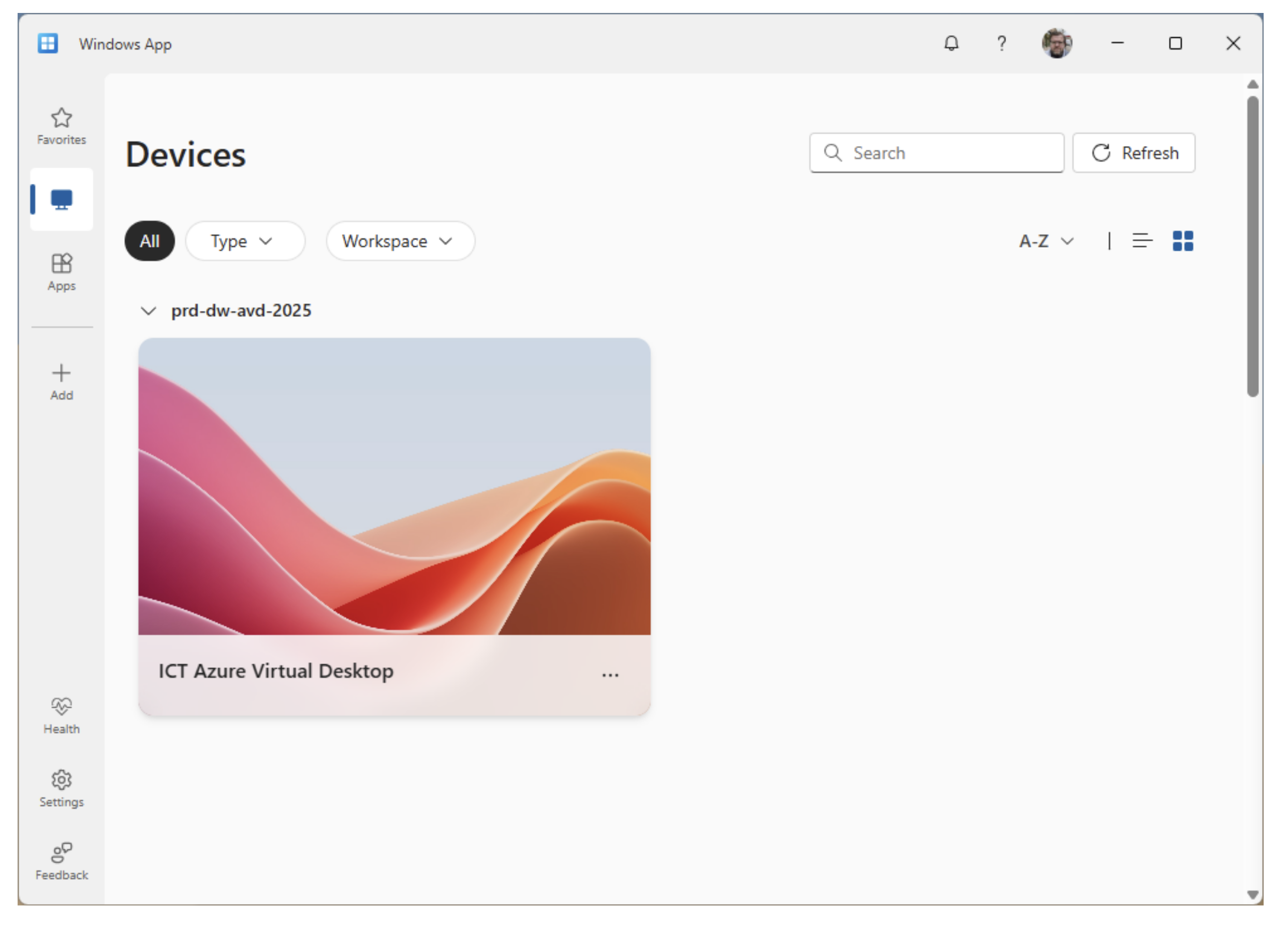
- You will now be able to see a selection of machines available to you, click on the one you want to use
- The Windows App will usually do SSO (Single-Sign On) and automatically pass your credentials through and log you on, if not then carry on with these instructions.
- Instead of a classic password prompt, a native Windows security window will appear.
- Scan your face/fingerprint, Hardware Key, or enter your local device PIN to immediately unlock and launch your Cloud PC session
5. You will now be logged on to your AVD
When you use the AVDs you will be assigned a random one from the pool and will need to use your passkey to logon, subsequent logons to that same AVD will just happen automatically. If you are randomly assigned a new AVD, then you will be prompted to use your Passkey again
If the passkey prompt fails or doesn't appear, ensure the app has permissions. Go to your local Windows Settings > Privacy & security > Passkey and ensure the toggle for the Windows App is turned On.
- Download the Windows App application from Self-Service if you haven't already.
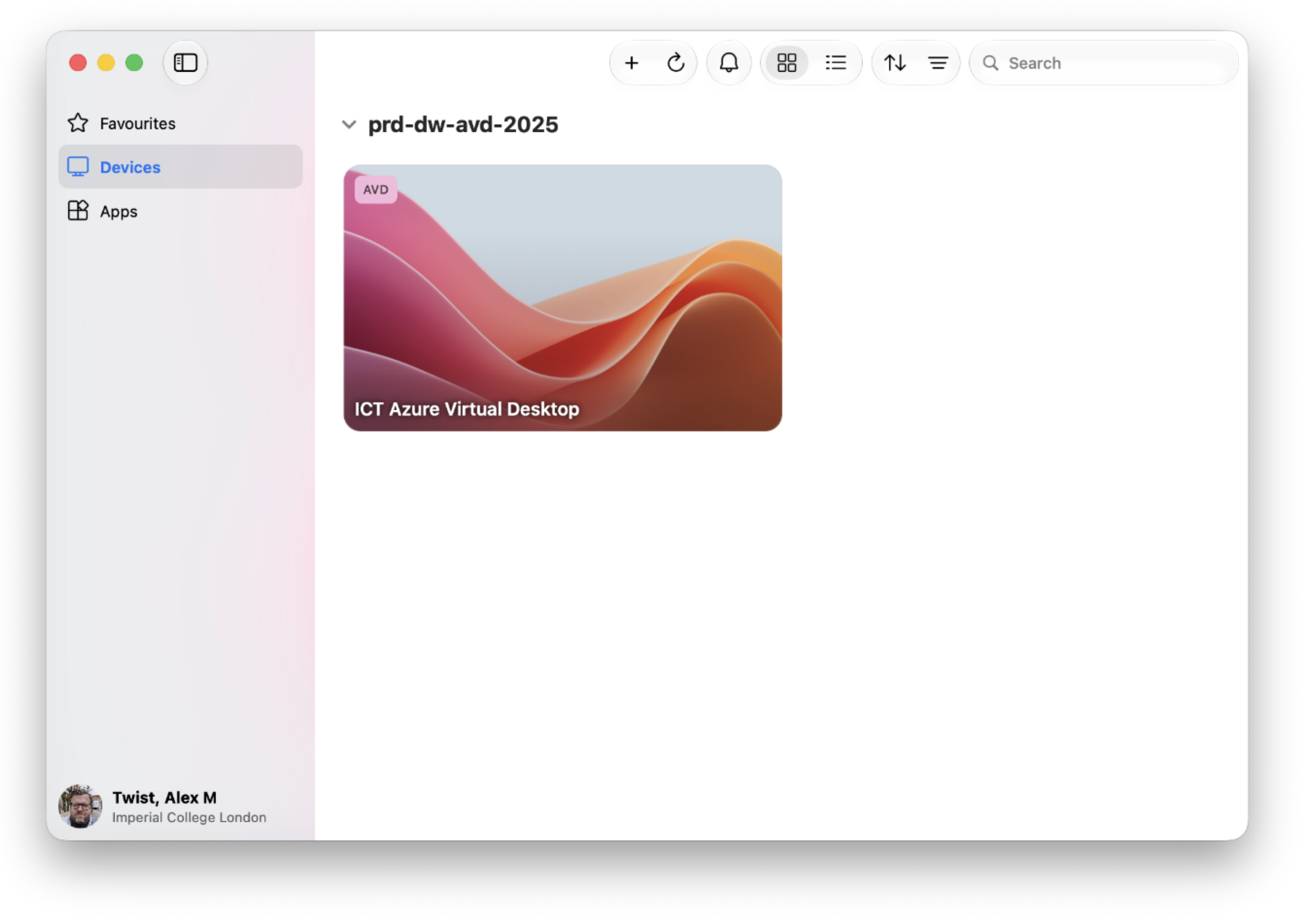
- Open the application and sign in, if requested, using your USERANEM@ic.ac.uk account. You will be presented with the Devices that you have access to
- Click on the computer icon and it should sign you in. You may be asked for you Passkey, if so you can use your hardware key, finger print or password.