Reporting an urgent cyber security incident
 If you have an urgent cyber security incident, call the ICT Service Desk on +44 (0)20 7594 9000 and they will assist you.
If you have any other cyber security question or concern, please submit a ‘Report an issue’ form and include as much detail as possible.
Below is a list of common cyber security incidents and how you can best respond to them.
FAQs
- I think I’ve received a phishing email – what should I do?
- I’ve clicked on a phishing email - what should I do?
- I've received an email claiming to be from someone within Imperial, but the email is coming from an external sender – what should I do?
- I’ve forgotten my password
- I believe my account has been compromised – what should I do?
- I’m getting unexpected/unusual MFA prompts on the Authenticator App
- I can no longer access the device I used for Microsoft Authenticator MFA requests
- My mobile device (smartphone/tablet/laptop) has been lost/stolen
- My server/workstation is infected with malware
- My USB stick/portable hard drive has been lost/stolen
- I think there's been a data breach
Phishing is like an online con where scammers pretend to be a trusted company (like your bank) in an email, text, or message to trick you into giving them sensitive info like your password, credit card number, or bank details. They use fake links to fake websites that look real to "fish" for your personal data, just like a fisherman uses bait!
If you think you’ve received a phishing email, report it to ICT (see Point 3 below) so that it can be examined and added to our spam filters.
Steps to help identify a potential malicious email:
1. If the answer to one of more of these is 'Yes’, treat the email with caution
- Is it unexpected – is this someone you don't know, or a service you have not signed up for?
- Is this a person or company that does not regularly contact you by email on this topic?
- Is the language used not in keeping with how you would usually interact with this person or service?
- Is anything unusual being requested?
- Is the tone urgent or aggressive?
- Does the sender’s email address look unusual or not from a genuine domain?
2. Verify the message
- Contact the sender directly via phone, Teams chat or create a new email to follow-up about the request.
- If it is related to a service you use, login to the service’s app/website before completing any action to verify/complete the request (never reply to an email with personal or sensitive information).
- Check it with your team or the team/line manager of the sender, or with those responsible for the service discussed in the email.
3. Report it
- If you are still not sure whether the message is phishing or not, report it to ICT who can examine it for you.
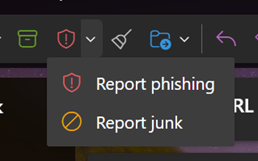
- If you are sure it is phishing, use the report phishing button within Outlook, which helps improve the spam filters. Users of other mail clients should use the web version of Outlook to report phishing emails.
Further support - Read more about Phishing on our Be Secure webpages.
There is no need to panic, phishing emails are getting more sophisticated every day, and it can be difficult to identify them.
- Change your password immediately.
- Review your recent sign-in activity, if you see something unfamiliar, select secure your account.
- Verify your registered Multi-Factor Authentication (MFA) methods and remove any that you do not recognise.
- Report the incident to the ICT Service Desk.
- If you haven’t already, you must migrate to using Passkeys (phishing-resistant MFA) to reduce the likelihood of your account being compromised.
- If you have reused your Imperial credentials (username and/or password) in other products or services, please ensure that you update these immediately and use a different password to your Imperial account.
- Report it - use the report phishing button within Outlook, which helps improve our spam filters.
If you use a different mail client, please log in to the web version of Outlook to report a phishing email.
Find out more about phishing and malware
There is a common phishing tactic where an email arrives into your mailbox from an external email address (i.e. a non-Imperial address) with subjects similar to; 'Are you available?' or 'Can you do me a favour'.
Please do not reply to these emails.
Use the Report phishing button within Outlook, which helps improve the spam filters.
Note: This will send a copy of the email to ICT and it will be investigated, if appropriate Imperial’s spam filters will be adjusted.
Find out more about phishing and malware.
In order to recover access to your account, use the Self-Service Password Reset (SSPR) service or call the Service Desk on +44 (0)20 7594 9000.
If you have not registered for SSPR, please contact the ICT Service Desk who can assist you with recovering access to your account.
If you believe your account or password has been compromised or hacked:
- Change your password immediately.
- Review your recent sign-in activity, if you see something unfamiliar, select secure your account.
- Verify your registered Multi-Factor Authentication (MFA) methods and remove any that you do not recognise.
- Report the incident to the ICT Service Desk.
- If you haven’t already, you must migrate to using Passkeys (phishing-resistant MFA) to reduce the likelihood of your account being compromised.
- If you have reused your Imperial credentials (username and/or password) in other products or services, please ensure that you update these immediately and use a different password to your Imperial account.
- Decline the app notification (select No It's Not Me).
- Do not respond to any text messages.
- Change your password immediately.
- Review your recent sign-in activity, if you see something unfamiliar, select secure your account.
- Verify your registered Multi-Factor Authentication (MFA) methods and remove any that you do not recognise.
- Report the incident to the ICT Service Desk.
- If you haven’t already, you must migrate to using Passkeys (phishing-resistant MFA) to reduce the likelihood of your account being compromised.
If you’ve lost/replaced the device you use for Microsoft Authenticator MFA requests, either as a result of a fault or device upgrade, you will need to create a new Microsoft Authenticator registration in your account for the new device and remove the previous one.
Please contact the ICT Service Desk if you need assistance with this process.
If your mobile device has been lost or stolen, please follow the steps below:
- Smartphones/Tablets often come with a remote wipe capability – follow the instructions on how to remotely wipe your device.
- If your device has been stolen, then please report the issue to the Police ensuring you receive a crime reference number.
- Report the issue as a potential data breach is important to understand what type of data is stored on the device. Information on how to report data breaches.
- Report the incident to the ICT Service Desk.
- If you use this device with Microsoft Authenticator for MFA or this has been setup with a passkey, you can remove registered MFA devices/passkeys online. Please contact the ICT Service Desk if you need assistance with removing this from your account.
If you suspect that your server or workstation (desktop/laptop/mobile) has been infected with malware (malicious software) like a virus, you should:
Servers
- Disconnect the server from the network to prevent the malware from spreading and/or sending your data to attackers.
- Do not switch the server off as that can hinder the investigation and remediation process.
Desktops/laptops/mobiles
- Disconnect your device from the network/internet to prevent the malware from spreading and/or sending your data to attackers. Do this by unplugging the network cable and/or enabling aeroplane mode.
- If you cannot disconnect your device from the network/internet, turn your device off to prevent the malware from inflicting further damage.
Change your password immediately on a different device.
USB sticks and portable hard drives present a significant risk to your data and to Imperial. ICT recommends using central data storage services that are backed up.
If your device has been stolen:
- Report the issue to the Police ensuring you receive a crime reference number.
- Inform the relevant Information Asset Owner (IAO) for the dataset stored on the device of the loss.
- Report the issue as a potential data breach.
- It is important to understand what type of data is stored on the device, noting anyData Activity Risk-assessment Tool (DART) or DPIA references that have been created in relation to the data set at risk. This will help support the data breach notification process.
- Report the incident to the ICT Service Desk.
For more information read Savng my files,
If you are required to use a USB stick/portable hard drive then please ensure it is appropriately protected as per Code of Practice 5 - System Security – Section 7.
A data breach is a security incident where sensitive, private, or confidential information is accessed, stolen, or exposed by unauthorised individuals, happening accidentally or deliberately through cyberattacks, insider leaks, or lost devices.
It can involve personal or company data and could lead to identity theft, financial loss, operational disruption, and reputational damage.
This is why notifications of possible breaches must be logged as soon as possible.
Common examples of data breaches include:
- If you have sent information which is considered personal data or sensitive data to the wrong recipient, or if you have received such information and it was not intended for you.
- If your work or personal mobile devices, tablets or laptops have been lost or stolen and Imperial data is stored on those devices.
- If your work or personal devices have become infected with a virus/malware.
- If you have reason to believe another individual has had access to information they should not have – either by entering a private office or accessing an unlocked device.
- If you become aware that data belonging to the University has been the subject of a breach of security while in the hands of any provider of services to the University.
Get information on how to report data breaches.
Note any Data Activity Risk-assessment Tool (DART) or DPIA references that have been created in relation to the data set at risk will help support the data breach notification process.
Report a vulnerability
Imperial’s IT security team welcome responsible disclosure of any vulnerability in our services. We are committed to verifying and responding to any legitimate reported vulnerability.
Disclosure guidelines
If you are aware of a vulnerability with a system/service provided by Imperial, then please send an email to vulnerability@imperial.ac.uk with your name and contact information.
We can provide encrypted channels over S/MIME or other mechanisms if required.
Please note this reporting policy is not permission to “hack” or “pen test” Imperial systems but provides a process to report issues legitimately discovered using our systems and services.
Further support
If you have experienced a different type of cyber security issue that’s not listed above, please contact the ICT Service Desk who can assist.