Microsoft's Personal Bookings is available to Imperial staff.
Staff can publish their availability, and others can schedule time directly into their calendar.
This guide explains how to create meeting types, manage availability, use buffer time and share your booking page.
How to access Personal Bookings
- Log in to your Microsoft 365 account
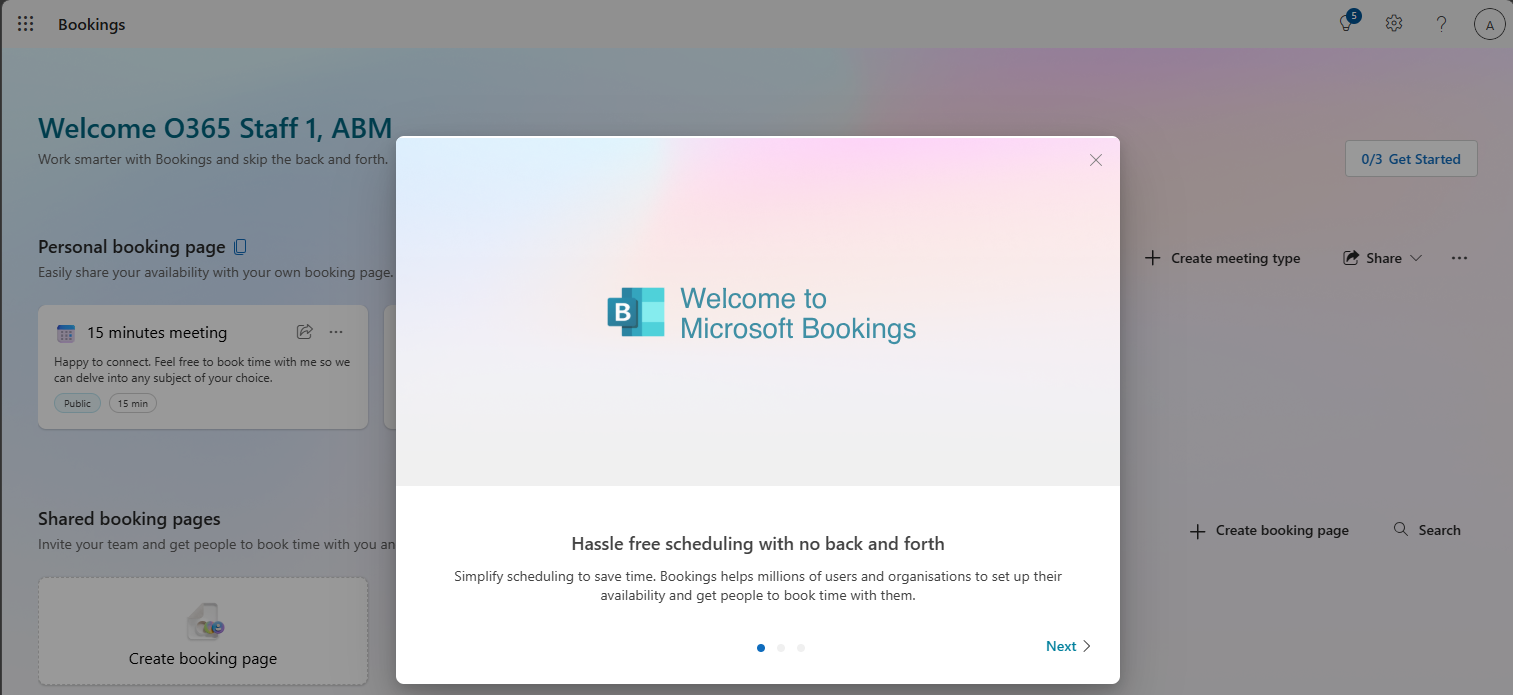
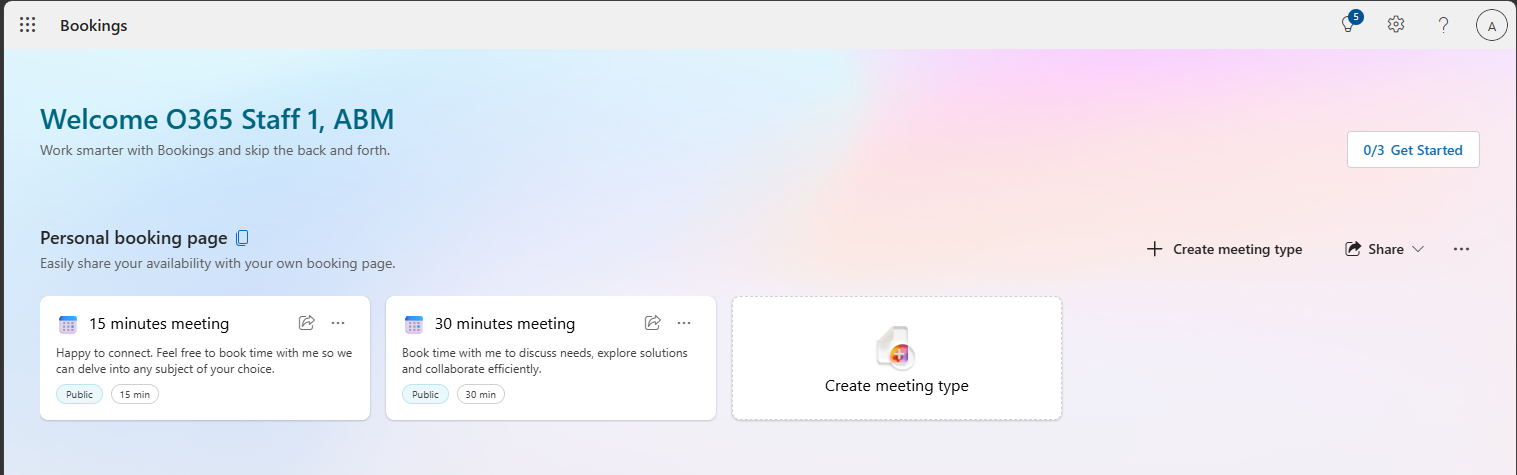
- Open Microsoft Bookings from the list of apps and select the Personal booking page.
Create a meeting
To create a meeting, you need to create a Meeting Type.
- Select Create meeting type.
- Enter a title and description.
- Choose duration, location and Teams meeting options.
- Select Public or Private visibility.
- Save the meeting type.

Get more from MS Personal Bookings
- Recommended meeting configuration
- Public vs Private Meeting Types
- Managing existing Meeting Types
- Availability and scheduling
- Using buffer time
- Advanced booking controls
- Sharing your booking page
- Adding bookings to your email signature
- Temporarily turning off bookings
- Shared Bookings
| Meeting type | Visibility | Duration | Buffer |
|---|---|---|---|
| Quick question | Public | 15 min | 5 min |
| General meeting | Public | 30 min | 10 min |
| Detailed discussion | Public | 60 min | 15 min |
| Executive meeting | Private | 60 min | 15 min |
- Public meeting types appear on your booking page and are visible to anyone with your booking page URL.
- Private meeting types are hidden and only available through a direct link.
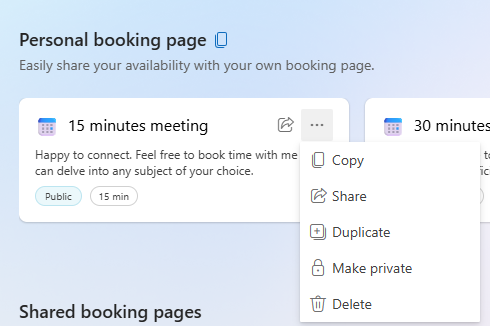
Use the three-dot menu to Copy, Share, Duplicate, Delete or Make Private/Public.
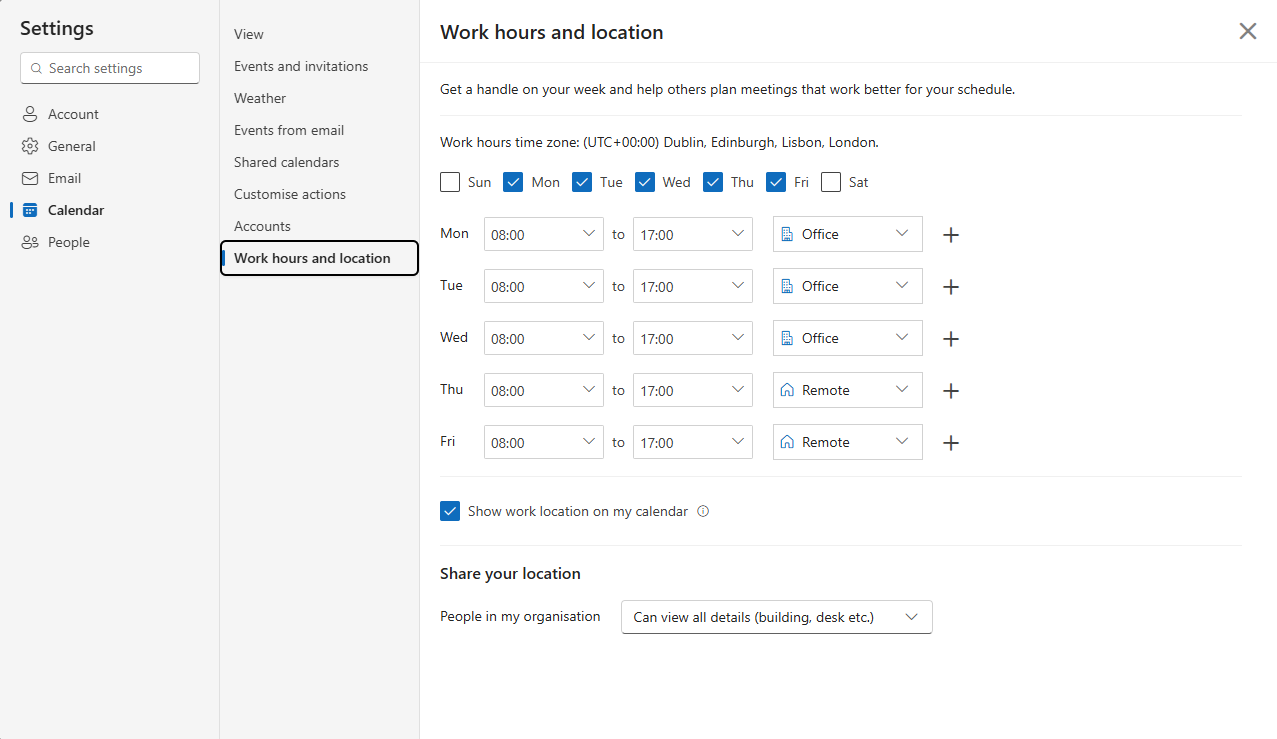
Use your regular Outlook working hours or define custom availability for individual meeting types.
- Buffer time reserves time before and after meetings.
- Recommended: 5 minutes for short meetings, 10-15 minutes for a 30-minute meeting, 15-30 minutes for longer meetings.
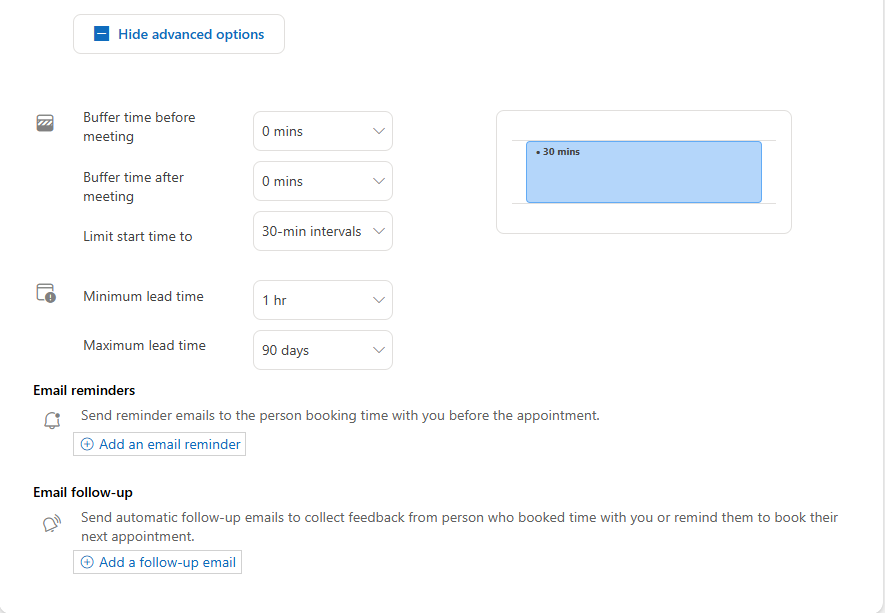
- Configure start-time intervals.
- Set minimum lead time.
- Set maximum lead time.
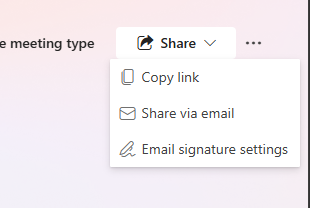
Use the Share menu to copy links or send by email.
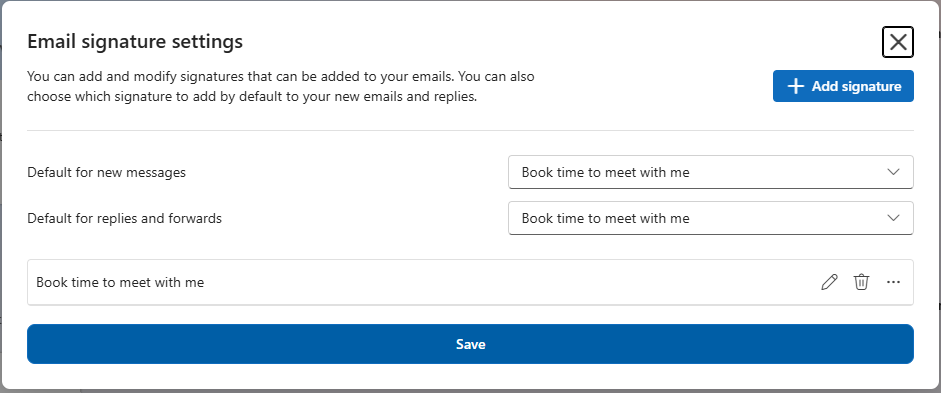
Enable booking links in your signature from Email Signature Settings.
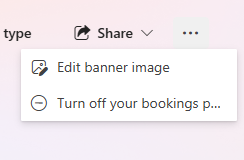
Use the three-dots menu and select Turn off your bookings page.
The Shared Bookings feature is a collaborative scheduling page in the Microsoft Bookings app that allows multiple team members or departments to manage appointments from a single group calendar.
Shared Bookings are only available when configured and handed over to a team by ICT.
Clicking on the create a Shared Bookings option will result in an error.
If you require a Shared Booking system for a group or team, please contact the ICT Service Desk.
Best practice recommendations
- Create multiple meeting types for different scenarios.
- Use buffer time to avoid back-to-back meetings.
- Use private meeting types for invitation-only appointments.
Support
- Read the Microsoft Personal Bookings FAQ.
- Read the Microsoft Bookings Overview.
- Use the Microsoft Support Portal.
- Contact the ICT Service Desk if you cannot find the support required.
Page update: 24 Aug 2026